Keyboard Shortcuts
Using keyboard shortcuts is the fastest way to interact with the Incremental Everything plugin. This page provides a reference for all the shortcuts added by the plugin, as well as native RemNote shortcuts that are essential to the workflow.
Plugin Shortcuts
This table lists all the custom keyboard shortcuts that are unique to the Incremental Everything plugin.
Core Commands
| Shortcut |
Command Name |
Function |
Context |
Alt + X |
Make Incremental (Extract) |
Tags the currently focused Rem as "Incremental". Performs a Reviewing-Items-in-the-Editor#extracting-text if text is selected. If triggered in the queue on a flashcard with no text selected, it intelligently converts that specific flashcard to an Incremental Rem natively. |
Editor and Queue |
Alt + Shift + X |
Extract with Priority |
Tags as "Incremental" and opens the Priority & Interval popup. Performs a Reviewing-Items-in-the-Editor#extracting-text if text is selected. If triggered in the queue on a flashcard with no text selected, it smartly converts the flashcard to an Incremental Rem and opens the Priority popup. |
Editor and Queue |
Alt + Z |
Create Cloze Deletion |
Applies Reviewing-Items-in-the-Editor#creating-clozes formatting to the selected text. |
Editor Only |
Alt + Shift + Z |
Create Cloze Deletion with Priority |
Same as above, then opens the Prioritization-&-Sorting#set-priority-popup to set a Card Priority for the new cloze Rem. |
Editor Only |
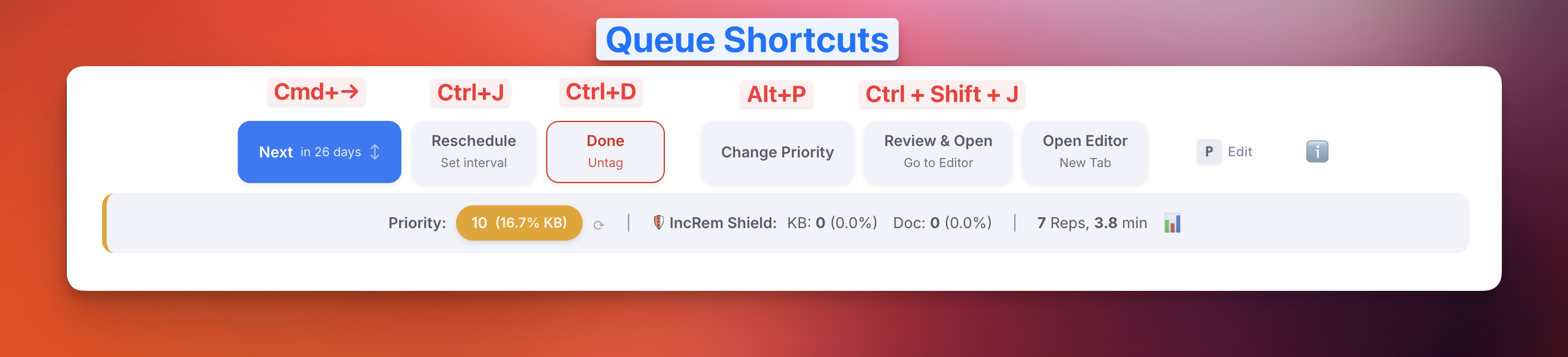
Ctrl + J |
Reschedule Incremental Rem |
Opens the Reschedule popup to set a custom next review date and priority. (On macOS: also Ctrl+J, not Cmd+J) |
Editor and Queue |
Ctrl + Shift + J |
Execute Incremental Rem Repetition |
Opens a popup to register a review directly in the Editor (with manual time entry or timer mode). When in the queue, it opens the IncRem in the Editor (greater flexibility and editing power), and starts the Editor Review Timer; when the processing is finished, it open the queue document again, so the user can continue the queue. |
Editor and Queue |
Ctrl + F7 |
Set Read Point (Bookmark) |
Marks the focused descendant rem as the current reading position of a Rem-type Incremental Rem (resolved from the active review session or nearest ancestor IncRem). The rem-type analogue of a PDF/HTML highlight bookmark. |
Editor and Queue |
Ctrl + Shift + F7 |
View Read Points (History) |
Opens the Read Points popup with the read-point history for the current Rem-type IncRem; click an entry to jump to that descendant. |
Editor and Queue |
Queue Navigation
| Shortcut |
Command Name |
Function |
Context |
Cmd + → (Mac) / Ctrl + → (Win) |
Next Item in Queue |
Marks the current Incremental Rem as reviewed, calculates the next interval, and advances to the next item. Same as the "Next" button. |
Queue Only |
Ctrl + D |
Dismiss Incremental Rem |
Permanently finishes the item by transferring its history to the Dismissed state and removing the Incremental power-up. Same as the "Dismiss" button. |
Editor and Queue |
Ctrl + Shift + J |
Review & Open |
Reviews the item (rescheduling it), opens it in the editor, and starts the Editor Review Timer. When the processing is finished, it open the queue document again, so the user can continue the queue. |
Editor and Queue |
Priority Commands
| Shortcut |
Command Name |
Function |
Context |
Alt + P |
Set Priority |
Opens the full Priority popup with analytics, inheritance info, and scope navigation. |
Editor and Queue |
Ctrl + Opt + P |
Quick Set Priority |
Opens the Light Priority popup for fast priority adjustments without heavy stats. |
Editor and Queue |
Ctrl + Opt + ↑ |
Quick Increase Priority Number |
Increases priority number by step size (default 10), making item less important. |
Editor and Queue |
Ctrl + Opt + ↓ |
Quick Decrease Priority Number |
Decreases priority number by step size (default 10), making item more important. |
Editor and Queue |
Batch Operations
| Shortcut |
Command Name |
Function |
Context |
Alt + Shift + R |
Create Priority Review Document |
Creates a review document with IncRems and cards sorted by priority. |
Editor Only |
| (n/a) |
Batch Priority Change (IncRems & Flashcards) |
Opens popup to change priorities of Incremental Rems and Flashcards in bulk (Increase, Decrease, Spread evenly, Adjust proportionally). Access via Command Palette or Document Menu. |
Editor Only |
Alt + Shift + C |
Batch Assign Card Priority |
Opens popup to assign card priorities in bulk for all flashcards tagged with the focused Rem. |
Editor Only |
View & Navigation
| Shortcut |
Command Name |
Function |
Context |
Alt + Shift + I |
Open Incremental Rems Main View |
Opens the main view popup showing all Incremental Rems with filtering and sorting. |
Global |
Ctrl + Shift + H |
Open IncRem Repetition History |
Opens the Single History view for individual items or Aggregated History view for folders with incremental descendants. |
Editor and Queue |
Ctrl + Shift + I |
Toggle Ignore Tag |
Adds/removes the #ignore tag on the focused Rem or a multi-rem selection (run from the Omnibar). Ignored rems are shrunk and dimmed (full opacity on hover/focus) and the tag chip is hidden — used during IR to mark already-read snippets that don't deserve becoming Incremental. |
Editor Only |
Editing Utilities
| Shortcut |
Command Name |
Function |
Context |
Shift + F8 |
Bulletize Inline Selected Text |
Toggles a • prefix on each line of a multi-line selection within a single rem. Restores bullets that a PDF highlight flattened into soft-wrapped text; a collapsed cursor bulletizes the whole rem. (Uses Shift+F8 because Opt+Shift+8 types ° on macOS and Ctrl+Opt+Shift+8 is RemNote's blue-highlight shortcut.) |
Editor Only |
Alt + Shift + F |
Find Rem — Reference or Open |
Floating picker that finds Rems RemNote's [[ search can't surface (all-common-word names). Enter/click inserts a reference at the cursor (cloze-aware, accent-insensitive); Ctrl/Cmd+Enter inserts it as a pin (no text); Opt/Alt+Enter inserts the Rem's text then a pin ("Text with Pin", preserving formatting/images); Shift+Enter/Shift+click opens the Rem in a new pane. |
Editor Only |
Shift + F3 |
Text Case Converter |
Cycles the selection through Title Case → UPPERCASE → lowercase, auto-detecting the current case. Rich-text safe; also works on multi-rem selections. |
Editor Only |
No default shortcut (run by quick code or from the Omnibar). The list-from-PDF-highlight commands ship unbound to avoid conflicts — invoke them by quick code: inl (Inlinize Detected List), brl (Break Inline List Into Children), and rlr (Restore List Rem). They act on the focused rem (no selection needed). Assign your own bindings in RemNote's keyboard-shortcut settings if you use them often.
Important Native RemNote Shortcuts
While not part of the plugin itself, these native RemNote shortcuts are crucial for an efficient incremental learning workflow.
| Shortcut |
Name |
Function |
Context |
P |
Open in Previewer |
Opens the current incremental Rem in a popup editor for quick edits. |
Queue Only |
G |
Go to Rem |
Exits the queue and navigates to the current Rem in the main editor. Note: This does not register your review of the card. For that, use the "Review & Open" button. |
Queue Only |
macOS Notes
- Shortcuts using
Alt on Windows/Linux correspond to Opt (Option) on macOS.
- Shortcuts using
Ctrl remain Ctrl on macOS (not Cmd/⌘).
- Example:
Ctrl+J on macOS is ⌃+J, not ⌘+J.