Keyboard Shortcuts
Using keyboard shortcuts is the fastest way to interact with the Incremental RemNote plugin. This page provides a reference for all the shortcuts added by the plugin, as well as native RemNote shortcuts that are essential to the workflow.
The same shortcuts are listed twice, in two different orders — pick whichever matches what you already know:
- By function — grouped by what you want to do (extract, prioritize, navigate the queue…). Use this when you know the task but not the key.
- By key — grouped by modifier (
Ctrl+…, Opt+…, Ctrl+Shift+……). Use this when you know the key but not what it does, or when you are looking for a free binding.
Also on this page: keys inside plugin popups, native RemNote shortcuts, macOS notes and Windows notes. Every shortcut of RemNote itself, with the plugin's mixed into one keyboard map, is on RemNote Native Shortcuts.
Plugin Shortcuts
This table lists all the custom keyboard shortcuts that are unique to the Incremental RemNote plugin.
Core Commands
| Shortcut |
Command Name |
Function |
Context |
Cmd + L (Mac) / Ctrl + L (Win) |
Learn - Practice Priority Queue (Full Knowledge Base) |
The plugin's main action: opens the queue on the full-KB Priority Queue. Sits next to RemNote's own Cmd/Ctrl+Shift+L (Practice Flashcards in Global Queue). |
Global |
Alt + X |
Make Incremental (Extract) |
Tags the currently focused Rem as "Incremental". Performs a Reviewing-Items-in-the-Editor#extracting-text if text is selected. If triggered in the queue on a flashcard with no text selected, it intelligently converts that specific flashcard to an Incremental Rem natively. |
Editor and Queue |
Alt + Shift + X |
Extract with Priority |
Tags as "Incremental" and opens the Priority & Interval popup. Performs a Reviewing-Items-in-the-Editor#extracting-text if text is selected. If triggered in the queue on a flashcard with no text selected, it smartly converts the flashcard to an Incremental Rem and opens the Priority popup. |
Editor and Queue |
Alt + Z |
Create Cloze Deletion |
Applies Reviewing-Items-in-the-Editor#creating-clozes formatting to the selected text. |
Editor Only |
Alt + Shift + Z |
Create Cloze Deletion with Priority |
Same as above, then opens the Prioritization-&-Sorting#set-priority-popup to set a Card Priority for the new cloze Rem. |
Editor Only |
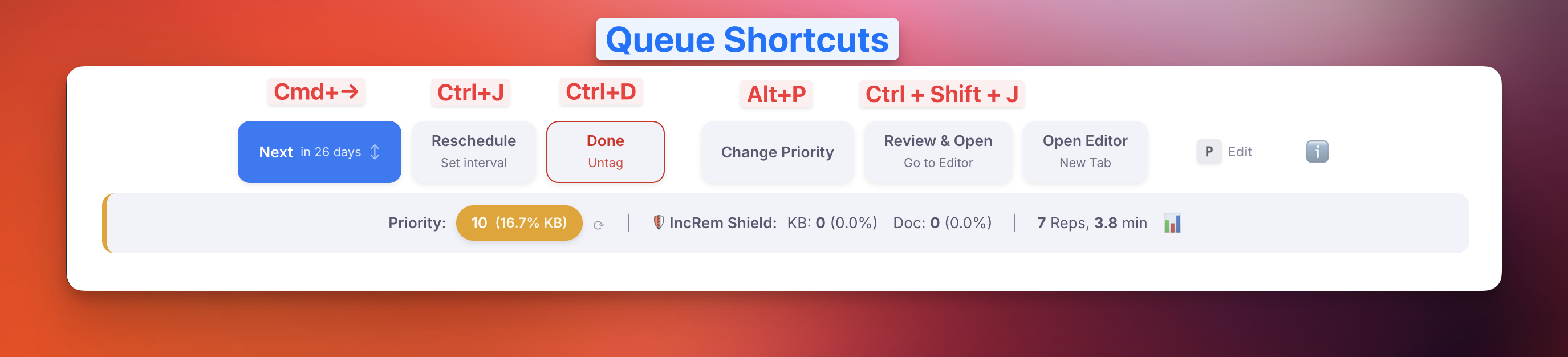
Ctrl + J |
Reschedule Incremental Rem |
Opens the Reschedule popup to set a custom next review date and priority. (On macOS: also Ctrl+J, not Cmd+J) |
Editor and Queue |
Ctrl + Shift + J |
Execute Incremental Rem Repetition |
Opens a popup to register a review directly in the Editor (with manual time entry or timer mode). When in the queue, it opens the IncRem in the Editor (greater flexibility and editing power), and starts the Editor Review Timer; when the processing is finished, it open the queue document again, so the user can continue the queue. With another Rem selected in the queue (e.g. opened in the previewer with P), it targets that Rem and opens the Execute Repetition popup for it instead. |
Editor and Queue |
Ctrl + F7 |
Set Read Point (Bookmark) |
Marks the focused descendant rem as the current reading position of a Rem-type Incremental Rem (resolved from the active review session or nearest ancestor IncRem). The rem-type analogue of a PDF/HTML highlight bookmark. |
Editor and Queue |
Ctrl + Shift + F7 |
View Read Points (History) |
Opens the Read Points popup with the read-point history for the current Rem-type IncRem; click an entry to jump to that descendant. |
Editor and Queue |
Queue Navigation
| Shortcut |
Command Name |
Function |
Context |
Cmd + → (Mac) / Ctrl + → (Win) |
Next Item in Queue |
Marks the current Incremental Rem as reviewed, calculates the next interval, and advances to the next item. Same as the "Next" button. |
Queue Only |
Ctrl + D |
Dismiss Incremental Rem |
Permanently finishes the item by transferring its history to the Dismissed state and removing the Incremental power-up. Same as the "Dismiss" button. |
Editor and Queue |
Ctrl + Shift + J |
Review & Open |
Reviews the item (rescheduling it), opens it in the editor, and starts the Editor Review Timer. When the processing is finished, it open the queue document again, so the user can continue the queue. |
Editor and Queue |
Priority Commands
| Shortcut |
Command Name |
Function |
Context |
Alt + P |
Set Priority |
Opens the full Priority popup with analytics, inheritance info, and scope navigation. |
Editor and Queue |
Ctrl + Opt + P |
Quick Set Priority |
Opens the Light Priority popup for fast priority adjustments without heavy stats. (May conflict on Windows — see Windows Notes) |
Editor and Queue |
Ctrl + Opt + ↑ |
Quick Increase Priority Number |
Increases priority number by the Priority Step Size (default 5), making item less important. (May conflict on Windows — see Windows Notes) |
Editor and Queue |
Ctrl + Opt + ↓ |
Quick Decrease Priority Number |
Decreases priority number by the Priority Step Size (default 5), making item more important. (May conflict on Windows — see Windows Notes) |
Editor and Queue |
Batch Operations
| Shortcut |
Command Name |
Function |
Context |
Alt + Shift + L |
Priority Queue |
Opens the Priority Queue popup: refresh, drain, refill and practise the persistent priority review document, and the Cooling list. |
Editor Only |
| (n/a) |
Batch Priority Change (IncRems & Flashcards) |
Opens popup to change priorities of Incremental Rems and Flashcards in bulk (Increase, Decrease, Spread evenly, Adjust proportionally). Access via Command Palette or Document Menu. |
Editor Only |
Alt + Shift + C |
Batch Assign Card Priority |
Opens popup to assign card priorities in bulk for all flashcards tagged with the focused Rem. |
Editor Only |
View & Navigation
| Shortcut |
Command Name |
Function |
Context |
Alt + Shift + I |
Open Incremental Rems Main View |
Opens the main view popup showing all Incremental Rems with filtering and sorting. |
Global |
Ctrl + Shift + H |
Open Repetition History |
Routes to the right view: Single History for an Incremental Rem, Flashcard History (all of the Rem's cards) for a flashcard, Aggregated History for a folder with incremental descendants. A Rem that is both offers a button across. (May conflict on Windows — see Windows Notes) |
Editor and Queue |
Ctrl + Shift + I |
Toggle Ignore Tag |
Adds/removes the #ignore tag on the focused Rem or a multi-rem selection (run from the Omnibar). Ignored rems are shrunk and dimmed (full opacity on hover/focus) and the tag chip is hidden — used during IR to mark already-read snippets that don't deserve becoming Incremental. |
Editor Only |
Editing Utilities
| Shortcut |
Command Name |
Function |
Context |
Shift + F8 |
Bulletize Inline Selected Text |
Toggles a • prefix on each line of a multi-line selection within a single rem. Restores bullets that a PDF highlight flattened into soft-wrapped text; a collapsed cursor bulletizes the whole rem. (Uses Shift+F8 because Opt+Shift+8 types ° on macOS and Ctrl+Opt+Shift+8 is RemNote's blue-highlight shortcut.) |
Editor Only |
Alt + Shift + F |
Find Rem — Reference or Open |
Floating picker that finds Rems RemNote's [[ search can't surface (all-common-word names). Enter/click inserts a reference at the cursor (cloze-aware, accent-insensitive); Ctrl/Cmd+Enter inserts it as a pin (no text); Opt/Alt+Enter inserts the Rem's text then a pin ("Text with Pin", preserving formatting/images); Shift+Enter/Shift+click opens the Rem in a new pane; Ctrl/Cmd+Shift+Enter appends a pin at the end of the Rem while keeping the selected text (linking a card to its source). |
Editor Only |
Shift + F3 |
Text Case Converter |
Cycles the selection through Title Case → UPPERCASE → lowercase, auto-detecting the current case. Rich-text safe; also works on multi-rem selections. |
Editor Only |
Alt + Shift + M |
Convert Extracted Markup to Rich Text |
Turns literal \[…\], $…$, **bold**, *italic* and -- left by PDF highlight extraction into real formulas, formatting and dashes, in the focused Rem and all its descendants. |
Editor Only |
Alt + Shift + G |
Cycle Image Size |
Sizes the images of the card or Rem (and three levels below) that were never sized in RemNote, so they stop showing cropped in the queue. Each press steps through Fit → Large → Medium → Original. |
Editor and Queue |
No default shortcut (run by quick code or from the Omnibar). The list-from-PDF-highlight commands ship unbound to avoid conflicts — invoke them by quick code: inl (Inlinize Detected List), brl (Break Inline List Into Children), and rlr (Restore List Rem). They act on the focused rem (no selection needed). Assign your own bindings in RemNote's keyboard-shortcut settings if you use them often.
Sources & Reading
| Shortcut |
Command Name |
Function |
Context |
Alt + O |
Open Hovered Source in Popup |
Hover a reference pin first, then press: opens the PDF/HTML source behind it in a centered modal viewer, without navigating away and without tearing down the queue (auto-scrolls to the highlight). Hovering a non-source reference only shows a toast. |
Editor and Queue |
Alt + Shift + O |
Open Hovered Source in Floating Window |
Same viewer, opened as a non-blocking floating window (~48% width, right side) so the card stays visible for peeking back and forth. Stays open when you click inside the PDF, auto-closes when you advance the card, and Esc closes it without closing the queue. |
Editor and Queue |
Ctrl + Shift + F1 |
Copy Rem Sources |
Copies all sources of the focused Rem into a session clipboard (and registers it in the PDF index). |
Editor Only |
Alt + Shift + V |
Paste Rem Sources |
Adds the copied sources to every selected Rem (or the focused Rem). Sources already present are skipped, so it is safe to re-run. |
Editor Only |
Alt + Shift + Q |
Pin Source Quote |
Finds the focused Rem's text in the open PDF or article, reuses the highlight that covers it or creates one, and pins it to the Rem. |
Editor Only |
In Logos Bible Software (LogosBridge helper)
Pressed in Logos, not in RemNote; they exist only while Logos is the app in front. Needs the LogosBridge helper (macOS).
| Shortcut |
Action |
Context |
Ctrl + Opt + X |
Extract the selection under the Incremental Rem you are reviewing, with a priority and interval panel |
Logos |
Ctrl + Opt + Shift + X |
Extract without the panel (inherited priority, default interval) |
Logos |
Ctrl + Opt + B |
Save the reading position as the book's bookmark |
Logos |
Ctrl + Opt + N |
Import the open book as a top-level Incremental Rem tagged #Logos |
Logos |
Shortcuts by Key
The same bindings as above, grouped by the modifier you press, in the style of a keyboard map. Use it to look up a key you half-remember, to check which combinations are still free before assigning your own, or to spot conflicts with your other RemNote shortcuts.
Notation: Alt = Opt (Option) on macOS; Ctrl stays Ctrl on macOS (never Cmd) — see macOS Notes.
Single keys
The plugin binds no bare single-key shortcuts — single keys stay free for RemNote itself and for typing. The two single keys that matter in this workflow are native RemNote ones, active in the queue: P (Open in Previewer) and G (Go to Rem). See Native RemNote Shortcuts.
Function keys
Function keys carry the utilities whose natural letter combination was already taken by RemNote or produces a special character on macOS.
Shift + key
(No Shift + letter bindings — those belong to RemNote's own text editing.)
Ctrl + key
Alt (Opt) + key
Ctrl + Shift + key
Alt (Opt) + Shift + key
Ctrl + Alt (Opt) + key
Cmd (Mac) / Ctrl (Win) + key
Not bound by default
These commands ship without a shortcut, so nothing collides with your own bindings. Run them from the Command Palette (Cmd/Ctrl+K) or by their quick code, or assign a key in RemNote's keyboard-shortcut settings:
The Plugin Commands Reference lists every command, bound or not.
These keys are active while a plugin popup or floating window is open — they are handled by the widget itself, not registered as global shortcuts.
| Where |
Key |
Action |
| Priority popups (Light, Priority & Interval) |
Enter |
Apply and close |
|
Esc |
Cancel and close |
|
Tab |
Move to the next field (priority → interval → …) |
| Reschedule popup |
Enter |
Apply the new date/priority |
|
Tab |
Cycle through the fields |
|
Esc |
Close without rescheduling |
| Find Rem picker |
↑ / ↓ |
Move through results |
|
Enter |
Insert a reference at the cursor |
|
Ctrl/Cmd + Enter |
Insert as a pin (no text) |
|
Alt + Enter |
Insert the Rem's text, then a pin |
|
Shift + Enter |
Open the Rem in a new pane |
|
Ctrl/Cmd + Shift + Enter |
Append a pin at the end of the Rem, keeping selected text |
|
Esc |
Close the picker |
| Image Scan popup |
↑ / ↓ |
Move between the two scopes (this Rem / whole knowledge base) |
|
Enter |
Run the selected scope — or, on the report, close the popup |
|
Esc |
Cancel and close (ignored while a scan is running, so a reflex Esc can't abort it) |
| Floating source window |
Esc |
Close the window without closing the queue |
Important Native RemNote Shortcuts
While not part of the plugin itself, these native RemNote shortcuts are crucial for an efficient incremental learning workflow. For every RemNote shortcut, with a keyboard map that shows the plugin's alongside, see RemNote Native Shortcuts.
| Shortcut |
Name |
Function |
Context |
P |
Open in Previewer |
Opens the current incremental Rem in a popup editor for quick edits. |
Queue Only |
G |
Go to Rem |
Exits the queue and navigates to the current Rem in the main editor. Note: This does not register your review of the card. For that, use the "Review & Open" button. |
Queue Only |
macOS Notes
- Shortcuts using
Alt on Windows/Linux correspond to Opt (Option) on macOS.
- Shortcuts using
Ctrl remain Ctrl on macOS (not Cmd/⌘).
- Example:
Ctrl+J on macOS is ⌃+J, not ⌘+J.
Windows Notes
On Windows and Linux, RemNote's Cmd shortcuts use Ctrl, so these plugin shortcuts press the same keys as a RemNote default, and only one of the two runs. On macOS they do not conflict:
If you use the RemNote command, rebind either one in RemNote's keyboard-shortcut settings. RemNote Native Shortcuts shows which combinations are free.