Plugin Settings Reference
This page documents every configurable setting in the Incremental RemNote plugin.
Every setting lives in one place: the plugin's own settings popup.
Where the settings are
Open the popup with the command Incremental RemNote: Settings (quick code is). It groups the settings by area, hides the ones that do not apply — the Mastery Drill's parameters stay out of sight until you switch the drill on — and links each entry to the section of this manual that explains it.
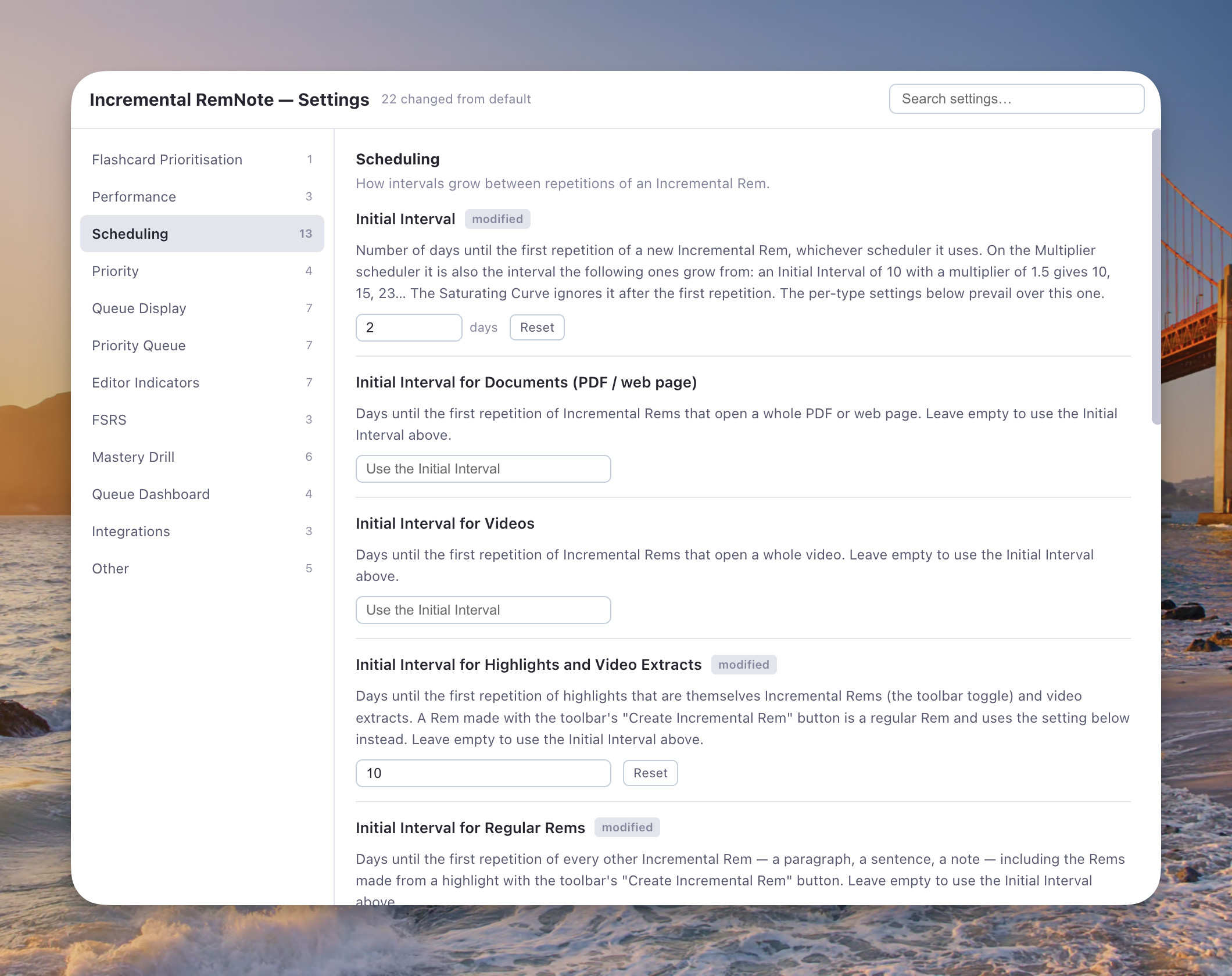
Above: the Scheduling group. The ? opens this manual at the matching section; Reset appears on anything changed from its default, next to a modified badge.
RemNote's own plugin settings panel is empty for this plugin. Up to v1.0.44, five of them stayed behind there — Enable Flashcard Prioritisation, Performance Mode, the two Always Use Light Mode switches and Enable Hide-in-Queue Powerups and Commands — on the theory that RemNote's panel is where you would look first if the plugin ever felt heavy. It never was: there was no performance problem to chase, and the split only gave you a second place to look. Since v1.0.45 they are in the popup with everything else, and editable there.
Upgrading from an earlier version
Your existing settings are carried over automatically the first time you load a version that moves them — nothing to re-enter, and nothing you have changed in the popup is overwritten. A setting appears in Settings → Plugins → Incremental RemNote for the single session in which it is being read across, carrying a note that says so, and is gone after the next reload. Editing it there in the meantime has no effect.
Flashcard Prioritisation
In the IE Settings popup.
| Setting | Type | Default | Description |
|---|---|---|---|
| Enable Flashcard Prioritisation | Boolean | false |
Master switch for per-flashcard priorities. Off by default. See Priorities for Flashcards for what it turns on, what keeps working without it, and why it is opt-in. Requires a reload. |
Performance
In the IE Settings popup.
| Setting | Type | Default | Description |
|---|---|---|---|
| Performance Mode | Dropdown | Light |
Choose between Full (all features, high resource use — best on Desktop App) and Light (faster, no relative priority/shield). The background pretagging and caching pass this used to start now also requires Enable Flashcard Prioritisation; with that off, Full mode no longer tags anything across your knowledge base. |
| Always Use Light Mode on Mobile | Boolean | true |
Auto-switches to Light mode on iOS/Android to prevent crashes and improve performance. |
| Always Use Light Mode on Web Browser | Boolean | true |
Auto-switches to Light mode on web browsers where Full mode can be slow or unstable. |
Scheduling
In the IE Settings popup.
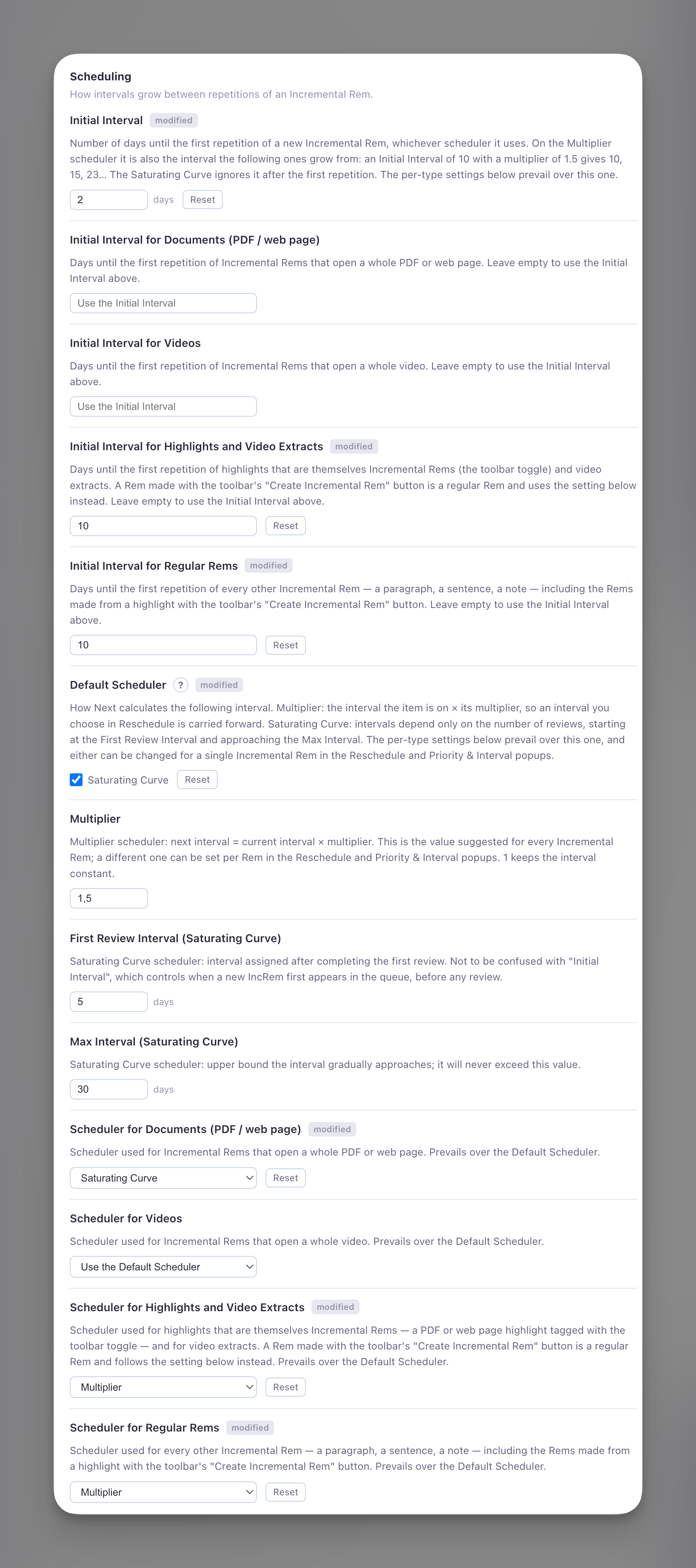
| Setting | Type | Default | Description |
|---|---|---|---|
| Initial Interval | Number | 1 |
Number of days until the first repetition of a new Incremental Rem, whichever scheduler it uses. On the Multiplier scheduler it is also the interval the following ones grow from (10 with a multiplier of 1.5 gives 10, 15, 23…); the Saturating Curve ignores it after the first repetition. The per-type settings below prevail over it. |
| Initial Interval for Documents / Videos / Highlights and Video Extracts / Regular Rems | Text | (empty) | Four settings giving a kind of Incremental Rem its own Initial Interval, in days. Leave one empty to use the general Initial Interval; 0 means due today. The types are the same as for the per-type schedulers — see Per-type defaults. |
| Default Scheduler | Multiplier / Saturating Curve | Multiplier |
How Next calculates the following interval when neither the Rem nor its type says otherwise. Multiplier: the interval the item is on × its multiplier, so an interval you choose in Reschedule is carried forward. Saturating Curve: intervals depend only on the number of reviews. Formerly Use Beta Scheduler. See IncRem Scheduler. |
| Multiplier | Number | 1.5 |
Multiplier scheduler: next interval = ⌈current interval × multiplier⌉. This is the value suggested for every Incremental Rem; a different one can be set per Rem in the Reschedule and Priority & Interval popups. 1 keeps the interval constant. See Multiplier scheduler. |
| First Review Interval (Saturating Curve) | Number | 5 |
Saturating Curve: interval in days assigned after completing the first review. Different from Initial Interval above, which controls when a new IncRem first appears in the queue. |
| Max Interval (Saturating Curve) | Number | 30 |
Saturating Curve: upper bound in days the interval gradually approaches. The interval will never exceed this value. |
| Scheduler for Documents (PDF / web page) | Dropdown | Use the Default Scheduler |
Scheduler for Incremental Rems that open a whole PDF or web page. Prevails over the Default Scheduler. See Per-type defaults. |
| Scheduler for Videos | Dropdown | Use the Default Scheduler |
Scheduler for Incremental Rems that open a whole video. |
| Scheduler for Highlights and Video Extracts | Dropdown | Use the Default Scheduler |
Scheduler for highlights that are themselves Incremental Rems (the toolbar toggle) and for video extracts. A Rem made with the toolbar's Create Incremental Rem button is a regular Rem and follows the next setting instead. |
| Scheduler for Regular Rems | Dropdown | Use the Default Scheduler |
Scheduler for every other Incremental Rem — a paragraph, a sentence, a note — including Rems made from a highlight with Create Incremental Rem. |
Priority
In the IE Settings popup.
| Setting | Type | Default | Range | Description |
|---|---|---|---|---|
| Default IncRem Priority | Number | 50 |
0–100 | Priority assigned to new Incremental Rems. Lower = more important. |
| Default Card Priority | Number | 50 |
0–100 | Priority assigned to flashcards without inherited priority. Lower = more important. |
| Priority Step Size | Number | 5 |
1–50 | What "one step" of priority means throughout the plugin. It is the amount the priority number changes with the Quick Increase/Decrease Priority shortcuts (Ctrl+Opt+Up/Down), and the amount each new cloze's number is raised above the previous one by Auto-Priority Graduation. |
| Priority Widget in Editor | Dropdown | Show for IncRem and Cards |
— | Controls when the priority widget appears in the right-hand margin of the editor. Options: Show for IncRem and Cards, Show only for IncRem, or Disable. |
Queue Display
In the IE Settings popup, under Queue Display.
| Setting | Type | Default | Description |
|---|---|---|---|
| Collapse Queue Top Bar (IncRem only) | Boolean | false |
Frees vertical space during Incremental Rem review by collapsing the queue top bar to a thin strip; hover it to reveal the full bar. Regular flashcard turns are unaffected. |
| Display Priority Shield in Queue | Boolean | true |
Shows a real-time count of your highest-priority due items in the queue. Appears below the Answer Buttons for IncRems and in the card priority widget for flashcards. 📖 Priority Shield. |
| Display Weighted Priority Shield in Queue | Boolean | true |
Shows what fraction of your total priority-weighted workload has been processed. High-priority items carry exponentially more weight (~10× at the top vs bottom), so processing them gives a bigger boost. Always increases as you review items. 📖 Weighted Shield. |
| Hold Back Spoiler IncRems | Boolean | true |
Holds an Incremental Rem back while a flashcard it would give away is still due — either a card on the Rem itself, or a cloze extracted from it with Alt+Z and filed directly underneath it — so reading the extract cannot hand you the answer before you grade the card. Released as soon as those cards are graded, and released anyway once nothing else is due. Normal queue only — Practice All and In Order are unaffected. 📖 Spoiler Protection. |
| Display Priority in Queue Toolbar | Boolean | true |
Shows the priority badge of the current flashcard or IncRem at the top right of the queue — in the toolbar, or in the card's top-right corner in RemNote's Beautiful queue variant. 📖 Queue Toolbar Priority. |
| Use Isolated Card View in Queue for | Dropdown | Highlights (PDF/HTML) |
Chooses which incremental items use the Isolated Card Viewer as their default view in the queue. Options: Highlights (PDF/HTML), Regular Rems, Both, None. Highlights that do not use the isolated card view are shown inside the PDF/HTML reader; regular Rems that do not use it are shown in the full document context. The toggle button in the queue is always available regardless of this setting — it determines only the initial view for each item. |
| Auto-focus Queue Dashboard | Boolean | false |
Opens the Practiced Queues dashboard in the Right Sidebar automatically every time you enter a queue, and restores it after you press Next or Dismiss on an Incremental Rem (returning you to the live session metrics once the sidebar was used for editing a Rem, or after RemNote auto-focused its own Summary pane for a PDF/HTML). Useful if you always want the live session metrics visible without opening the sidebar manually. Does not apply to mobile, where it would be annoying and counterproductive. 📖 Practiced Queues History & Live Dashboard. |
Priority Queue
In the IE Settings popup, under Priority Queue. How the Priority Queue document refreshes, and how long cooling keeps a spoiled Rem out of it.
| Setting | Type | Default | Description |
|---|---|---|---|
| Refresh the Priority Queues at startup and after each session | Boolean | true |
When RemNote starts, once the caches are loaded, refreshes the full-KB Priority Queue (document queues wait for their own sessions); when you leave the queue after practising one, drains what you reviewed and tops that document back up to its fill target a couple of seconds later, so it is ready before the next Practice. Never runs while a queue is open, and not in Light Mode, where you refresh from the popup instead. 📖 Refresh at startup and after every session. |
| Cooling: share of the interval | Number | 5 % |
How long a Rem stays out of the Priority Queue after a card that gives its answer away was reviewed, as a share of the cooled card's own interval, rounded up to whole days — a 100-day card cools for 5 days. 📖 How long. |
| Cooling: minimum | Number | 1 day |
The shortest cooling window — what a brand-new card gets when its sibling was just reviewed. |
| Cooling: maximum | Number | 15 days |
The longest cooling window, reached by cards with intervals of a year or more at the default share. |
| Cooling: new cards | Number | 1 day |
How long a card you just created stays out of the Priority Queue (and, with Cooling: where new cards cool, RemNote's own queues) before its first review, counted from the card's own creation time — SuperMemo counts creating an item as its first repetition. 0 turns it off; at most 10 days. 📖 What counts as a spoiler. |
| Cooling in RemNote's queues | Boolean | All queues |
Where a card of a cooling Rem is skipped: All queues or Learn New only. Learn New Cards is always covered. All queues adds RemNote's spaced-repetition queues (a document, the daily queue), with a toast saying why. Practice All Flashcards (shuffled or in order), Card Clusters and Light Mode are left alone. Cards you just created are not skipped there unless the next setting is on. 📖 Cooling in RemNote's own queues. |
| Cooling: where new cards cool | Boolean | Priority Queue only |
Where a card you just created is held back for the days set in Cooling: new cards: Priority Queue only or RemNote's queues too. RemNote's queues too also skips it in the spaced-repetition queues (a document, the daily queue) — the queue of a document you wrote today then opens empty. Needs Cooling in RemNote's queues set to All queues; Learn New Cards is never affected. 📖 Cooling in RemNote's own queues. |
Editor Indicators
In the IE Settings popup. All of these require a RemNote reload after changing.
| Setting | Type | Default | Description |
|---|---|---|---|
| Green Left Border for IncRems | Boolean | true |
Adds a green left border to IncRems in the editor, making your "extracts" easy to spot. The border spans the Rem and its descendants; the document you are currently inside is marked on its title only. |
| Enable Pin Reference Colour Rings | Boolean | false |
Rings reference pins by where they lead — blue for a Rem holding an image, yellow for a text highlight on a PDF page, purple for a text highlight in a web article or a PDF's Text Reader view, yellow and blue for a PDF area highlight. Needs Tag Rems With Images to have been run for the image states. With this off, pins are left unmarked, including the priority-band border the highlight styling would otherwise draw on them. 📖 Colour Coding Reference |
| Mark Audio That Is Only Linked | Boolean | false |
Draws a dashed orange outline and a 🔗 on an audio player whose file lives on an outside server rather than in RemNote, so it would break if that server moved the file. Store linked images & audio in RemNote stores it, and the outline goes. Editor only; audio only. |
| Yellow Left Border for Dismissed Rems | Boolean | true |
Rems dismissed from Incremental learning (via the Dismiss button/command) display a yellow left border to indicate they have been already processed (and preserved history). The border spans the Rem and its descendants. |
| Hide CardPriority Tag in Editor | Boolean | true |
Hides the CardPriority powerup tag in the editor to reduce visual clutter. Priority can still be set with Alt+P. |
| Hide Dismissed Tag in Editor | Boolean | true |
Hides the Dismissed powerup tag in the editor to reduce clutter. |
| Show Priority Badges in Table Cells | Boolean | true |
Draws a coloured band badge (e.g. 50s) at the top-right of each table row's first cell — the one place the Priority Editor widget cannot render. Run Refresh Priority Badges (Tables) once to fill in existing Rems. Governs tables only — PDF highlight badges are not affected by it. 📖 Priorities in Tables. |
FSRS
In the IE Settings popup.
Display and statistics only — these do not schedule anything
Nothing in this group can move a due date. Your scheduling is RemNote's, and is configured in RemNote Settings → Schedulers. These settings tell the plugin what your scheduler is doing, so that the numbers it shows you describe your real reviews — set them to match what you use there. Changing them here alone does not change your scheduling; it only makes the readouts wrong.
| Setting | Type | Default | Description |
|---|---|---|---|
| Display FSRS DSR Stats (Flashcards) | Boolean | true |
Shows calculated FSRS Difficulty (D), Stability (S), and Retrievability (R) for flashcards in the Card Info Bar widget. Requires FSRS v6 scheduler. 📖 Card Stats & FSRS Integration. |
| FSRS Global Weights | String | (empty) | Comma-separated list of 21 FSRS v6 weights (w0–w20). Paste them from RemNote Settings → Schedulers so the plugin computes the same D/S/R your scheduler does. If left blank, the official FSRS v6.1.1 defaults are used. Editing them here does not retrain or change your scheduler. See FSRS Configuration for details. |
| Requested Retention | Number | 90 % |
The recall probability your RemNote scheduler aims for at review time — copy the value from RemNote Settings → Schedulers; setting it here does not change what your scheduler asks for. Stability equals the scheduled interval only at the 90% default; off it, the plugin converts stability to the interval you will actually get and computes the U-Factor from that, showing the 90% figure alongside in parentheses. D, S and R are unaffected. 📖 Requested Retention. |
Mastery Drill
In the IE Settings popup. The other settings appear only while the drill is enabled.
| Setting | Type | Default | Description |
|---|---|---|---|
| Enable Mastery Drill | Boolean | false |
Master switch for the Mastery Drill. Off by default: while it is on, the plugin watches every flashcard rating and keeps a list of the ones to drill, and registers the drill popup, its command and the sidebar notification. Leave it off if you do not use the workflow and none of that work happens. Flashcard and Practiced Queue history are unaffected either way. Requires a reload. (Replaces the former "Skip Mastery Drill", whose value is inverted and carried over automatically.) |
| Old Items Threshold | Number | 7 days |
Number of days after which a card lingering in the Mastery Drill queue is flagged as stale. A warning appears in the widget and you can clear these items with a single click. |
| Mastery Drill Minimum Delay | Number | 180 min |
Cooldown after a card is rated Again or Hard before it appears in the drill, so the initial repetition has time to consolidate. 📖 Minimum Delay. |
| Disable Mastery Drill Notifications | Boolean | false |
Hides the periodic Left Sidebar notification widget that appears when ≥ 10 cards are pending in the Mastery Drill queue. |
| Where the Drill Runs | Dropdown | Regular queue |
Regular queue: RemNote's own queue, with the card info bar and every other plugin's widgets; the other cards of a drill Rem are skipped. Popup: the drill's own window with an embedded queue, where RemNote shows no plugin widgets. 📖 Where the Drill Runs. |
| Reveal Delay (regular-queue drill) | Number | 500 ms |
Shown only for the regular-queue drill. How long each card stays hidden before it fades in, so a card the plugin skips is not seen. Longer hides more skips but delays every card; 0 turns it off. |
Queue Dashboard
In the IE Settings popup. Which parameters appear depends on the threshold mode.
These govern the red → green colouring of every speed reading in the Practiced Queues dashboard — the live session card, the History Log and the Sessions Summary table. 📖 Speed Colour Coding.
| Setting | Type | Default | Description |
|---|---|---|---|
| Speed Colour Thresholds | Dropdown | Calibrated from my card history |
Calibrated derives the two ends of the gradient from your own average seconds-per-card, so the colours judge a session against your usual pace rather than a universal standard. Fixed cards-per-minute limits uses the two absolute limits below instead — the same for everyone, and what the dashboard used before this setting existed. |
| Red At or Below | Number | 1.5 cpm |
Fixed mode. A pace at or below this is drawn fully red. 1.5 cpm is 40 s/card. Also the fallback used in calibrated mode until the first measurement completes. |
| Green At or Above | Number | 4 cpm |
Fixed mode. A pace at or above this is drawn fully green. 4 cpm is 15 s/card. Must be higher than the red limit; if it is not, the plugin falls back to the 1.5 / 4 defaults rather than drawing a broken gradient. |
| Calibration Period | Dropdown | Last 1 year |
Calibrated mode. How far back your average is measured: Ever, Last 1 year, Last 1 month or Last 1 week. Shorter windows track your current form; longer ones are steadier. |
| Margin Around the Average | Number | 10 s |
Calibrated mode. Distance from your average, in seconds per card, at which the colour saturates: average + this is fully red, average − this is fully green, and your average itself sits mid-gradient. A smaller margin reacts more sharply to small changes of pace. |
| Forgetting Curve | Boolean | Shown |
Draws the current card's forgetting curve at the top of the dashboard: its history replayed into the retrievability FSRS predicts, and a forecast of what each answer button would do to it. Set it to Hidden if you would rather not see it, or if your cards are not scheduled with FSRS — the curve is drawn from the FSRS settings above, not from the scheduler RemNote runs. 📖 Forgetting Curve. |
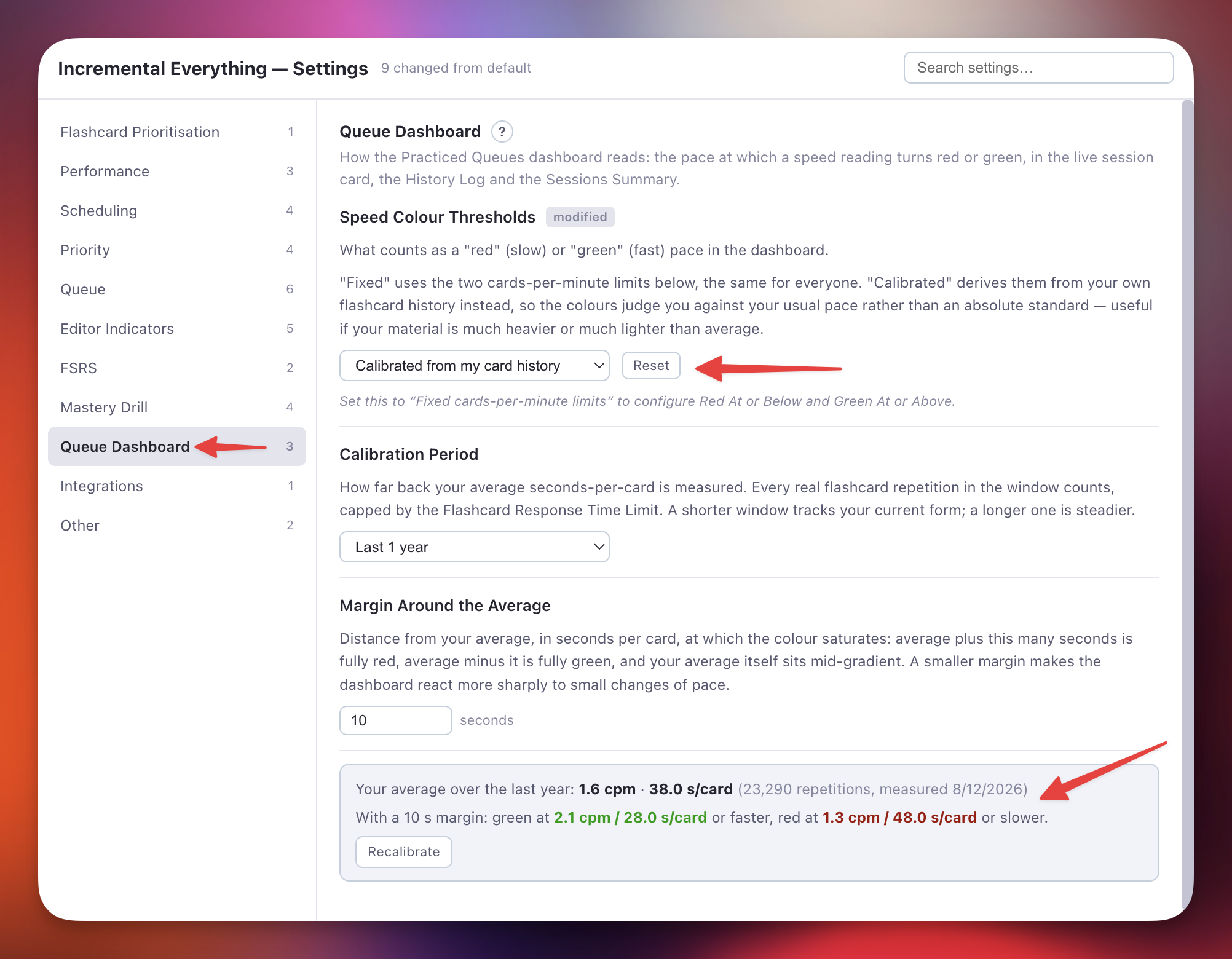
In calibrated mode the section also shows the measured average itself — in both cpm and s/card, with the number of repetitions behind it and the resulting green and red points — and a Recalibrate button that re-measures on the spot.
Integrations
In the IE Settings popup.
| Setting | Type | Default | Description |
|---|---|---|---|
| Enable Hide-in-Queue Powerups and Commands | Boolean | false |
Registers five additional Queue Display powerups and their commands — Hide in Queue, Remove from Queue, No Hierarchy, Hide Parent, and Hide Grandparent — that were originally part of the standalone Hide in Queue plugin. These powerup codes are identical to those in that plugin; enabling this setting while the standalone plugin is still installed causes a fatal Duplicated powerup error and prevents Incremental RemNote from loading. Uninstall the standalone Hide in Queue plugin before enabling this. The two powerups added by Incremental RemNote itself — Remove Parent and Remove Grandparent — are always registered regardless of this setting. A RemNote reload is required after changing. 📖 Hide in Queue. |
| Logos Bible Software Bridge | Boolean | false |
Receives extracts, bookmarks and book imports from Logos Bible Software through the local LogosBridge helper (macOS). While off, the plugin never contacts the helper and Open in Logos is not registered. 📖 Logos Bible Software Integration. |
| Open in Logos Automatically | Boolean | false |
Shown when the bridge is on. When an Incremental Rem comes up in the queue, or an Editor Review timer starts, runs Open in Logos for it, so Logos comes forward at its bookmark or passage. Each Rem opens once per appearance; Rems without a Logos link are left alone. 📖 Settings. |
Other
In the IE Settings popup.
| Setting | Type | Default | Description |
|---|---|---|---|
| RemNote Environment | Dropdown | Regular |
Choose which RemNote environment documents open in when using the "Open Editor in New Tab" button. Options: Regular (www.remnote.com) or Beta (beta.remnote.com). |
| Flashcard Response Time Limit | Number | 180 s |
Caps the recorded study time per card. If you step away from your device mid-card, only up to this limit is counted toward speed and total time metrics, mirroring RemNote's native behavior. |
| Title Case Acronyms | Text | (empty) | Extra acronyms the Text Case Converter keeps fully uppercase when it applies Title Case, so arqueação bruta (ab) becomes Arqueação Bruta (AB). Separate them with commas or spaces. Common maritime, institutional and technical acronyms are built in, Roman numerals used as numbering (Seção II) are detected, and words already written in capitals are preserved without being listed — the list is what restores them after a pass through lowercase. Entries win over the article/preposition rules, so a two-letter entry that is also a word (SE, NO) will capitalise every occurrence of it. 📖 Acronyms and initialisms. |
| Source Highlight Colour | Dropdown | Orange |
Colour of the highlights the plugin creates when it pins the source of a passage (Pin Source Quote, and Create IncRem's other-view pin) — in a PDF, a saved web article or a PDF's Text Reader view. A passage that already has a highlight is pinned to that highlight, which keeps its own colour. 📖 Source Pins |
| Create IncRem: Also Pin the Other PDF View | Boolean | false |
When a PDF also has a Text Reader version, Create Incremental Rem pins the passage in both views — the Text Reader for a PDF-page highlight, the PDF page for a Text Reader highlight — reusing or creating that view's highlight and marking it as extracted. Needs the local helper; without it the Rem keeps its single pin. 📖 Pinning both views on Create IncRem |