History, Queue Dashboard & Mastery Drill
These features were originally developed as a companion plugin (History, Queue Dashboard and Mastery Drill) and have been fully integrated into Incremental RemNote as of v0.2.182.
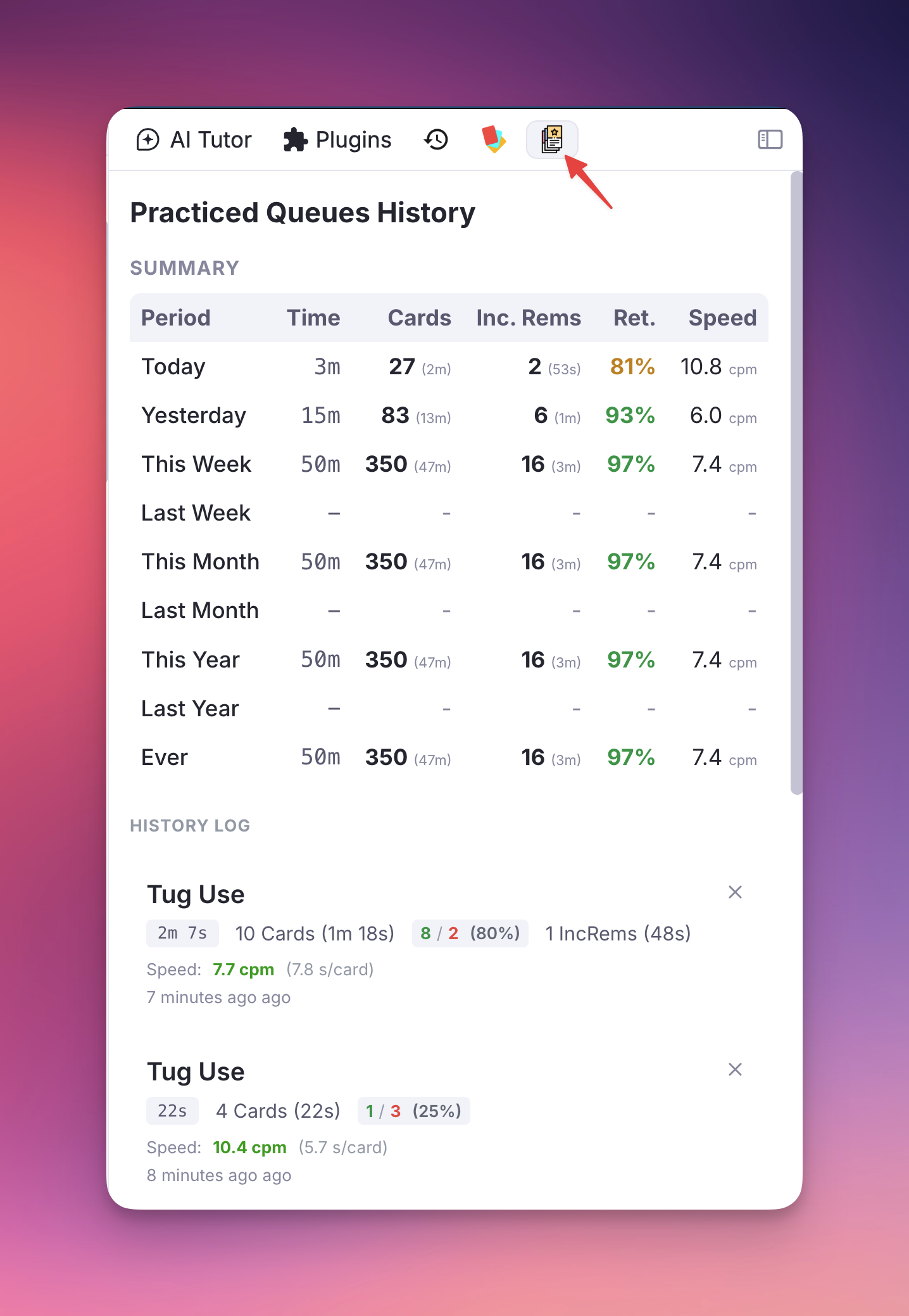
They add a suite of history and practice tools to your right sidebar: a Live Session Dashboard with real-time study metrics, a Practiced Queues History to track sessions over time, a Flashcard History to find recently reviewed cards, a Visited Rem History to retrace your navigation, and a Mastery Drill queue to deliberately target your most difficult material.
Migrating from the Standalone Plugin
This section only applies to users who previously had the History, Queue Dashboard and Mastery Drill plugin installed. If you are a new Incremental RemNote user, skip ahead.
Background
Both plugins store their data in isolated, plugin-scoped namespaces — so running them simultaneously will not corrupt any data. However, both plugins register a command with the same name (Mastery Drill: deliberately practice poorly rated cards), which causes two identical entries in the Command Palette. Each plugin also maintains its own separate drill queue; rating a card Forgot or Hard would add it to both queues independently. Running both at the same time is therefore confusing and not recommended.
The cleanest migration path is to disable IE's Mastery Drill while you finish and export from the old plugin, then uninstall the old plugin and re-enable IE's drill.
Migration Protocol
Step 1 — Disable IE's Mastery Drill temporarily
In the plugin's settings popup (Incremental RemNote: Settings, quick code is) → Mastery Drill, turn Enable Mastery Drill off. Then reload RemNote. This hides IE's drill popup, notification widget, and command, and stops IE from tracking AGAIN/HARD cards — leaving only the old plugin's drill active and unambiguous.
*Step 2 — Complete your old Mastery Drill queue (optional)*
Open the old plugin's drill via Command Palette → Mastery Drill and practice the queue to completion. Any cards you don't practice will not transfer to IE — they will simply repopulate in IE's drill the next time you rate them Forgot or Hard in a regular queue session. If you don't mind losing the pending items, skip this step.
Step 3 — Export your Practiced Queues history from the old plugin
In the old plugin's Practiced Queues History sidebar tab, click the Export button and save the JSON file.
What cannot be migrated: Flashcard History and Visited Rem History do not transfer. IE has been tracking its own copies from the moment it was installed, so those tabs will already contain recent entries.
Step 4 — Uninstall the old plugin
Go to RemNote Settings → Plugins, find History, Queue Dashboard and Mastery Drill, and uninstall it.
Step 5 — Re-enable IE's Mastery Drill
In the same place, turn Enable Mastery Drill back on. Then reload RemNote. IE's drill popup, notification widget, and command are now active again, and AGAIN/HARD tracking resumes.
Step 6 — Import your Practiced Queues history
In IE's Practiced Queues History sidebar tab, click the Import button and select the JSON file from step 3. Duplicate sessions are automatically detected and skipped.
Visited Rem History
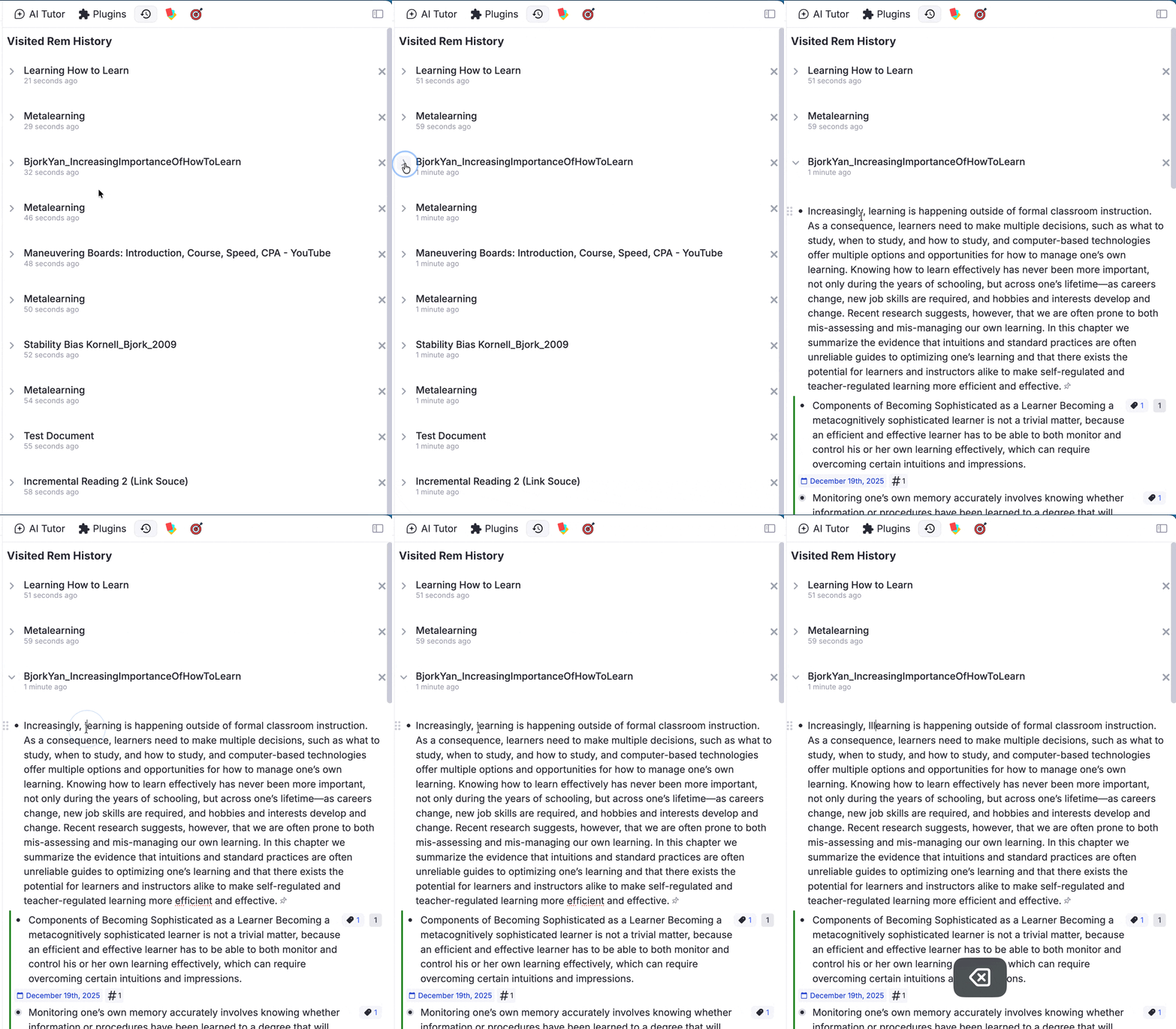
What it does: Records a chronological history of the Rems you have navigated to in the Editor.
Why use it: Quickly jump back to documents you were just working on without losing your place.
Interaction: You can expand and edit the Rem directly in the right sidebar.
Search: Includes a search bar to instantly filter your history. Supports multi-word queries (e.g., "Biology Exam") and deep text search across all recorded items.
Retention: The list keeps the 500 most recent visits for the knowledge base you are in. See How the history lists are stored.
Flashcard History
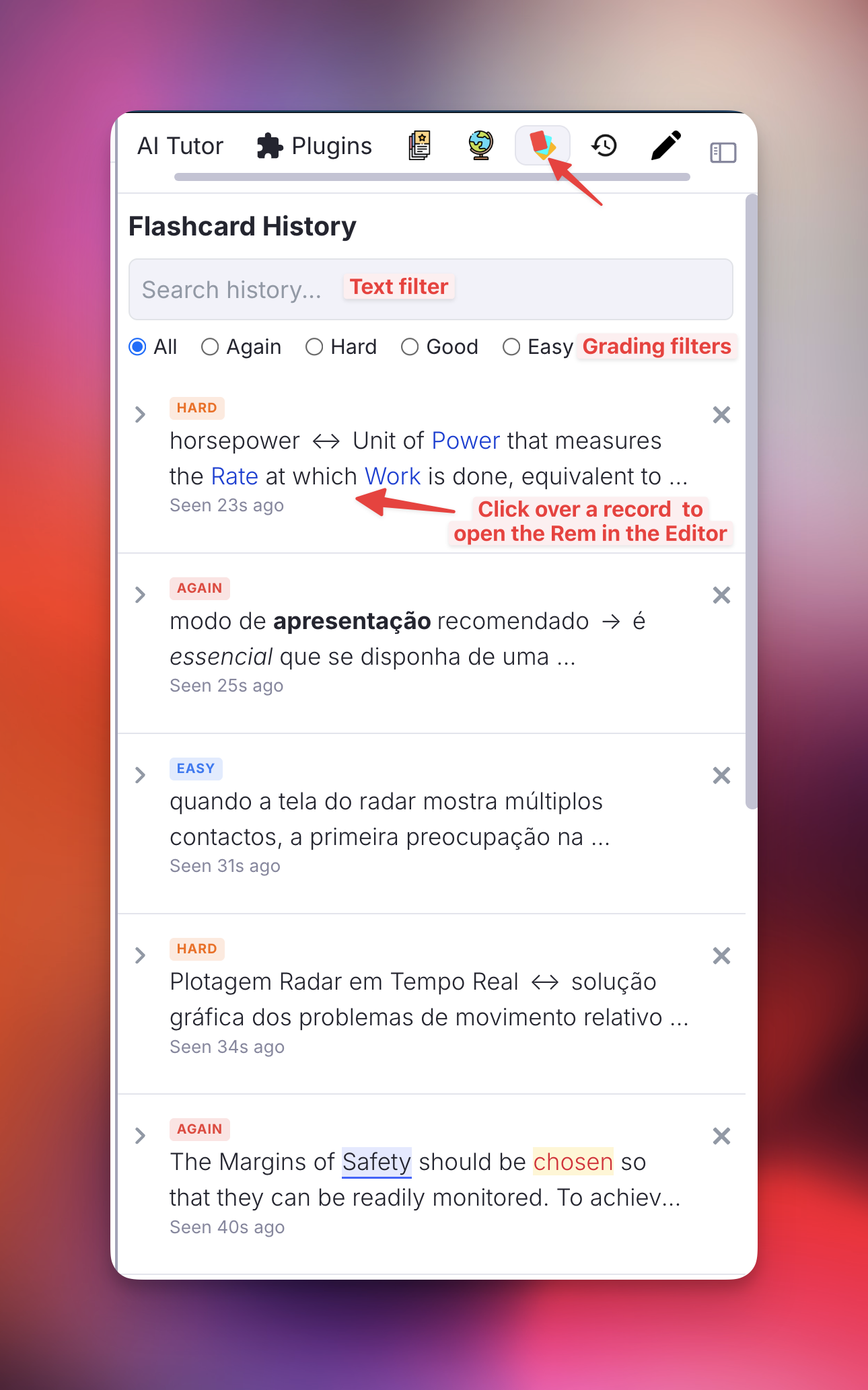
What it does: Records the chronological history of the Rems associated with the flashcards you have just seen in the Flashcard Queue.
Why use it: If you want to check context or edit a flashcard you just reviewed, you can easily find it here without interrupting your session flow.
Interaction: Clicking on a flashcard will open the Rem in the Editor.
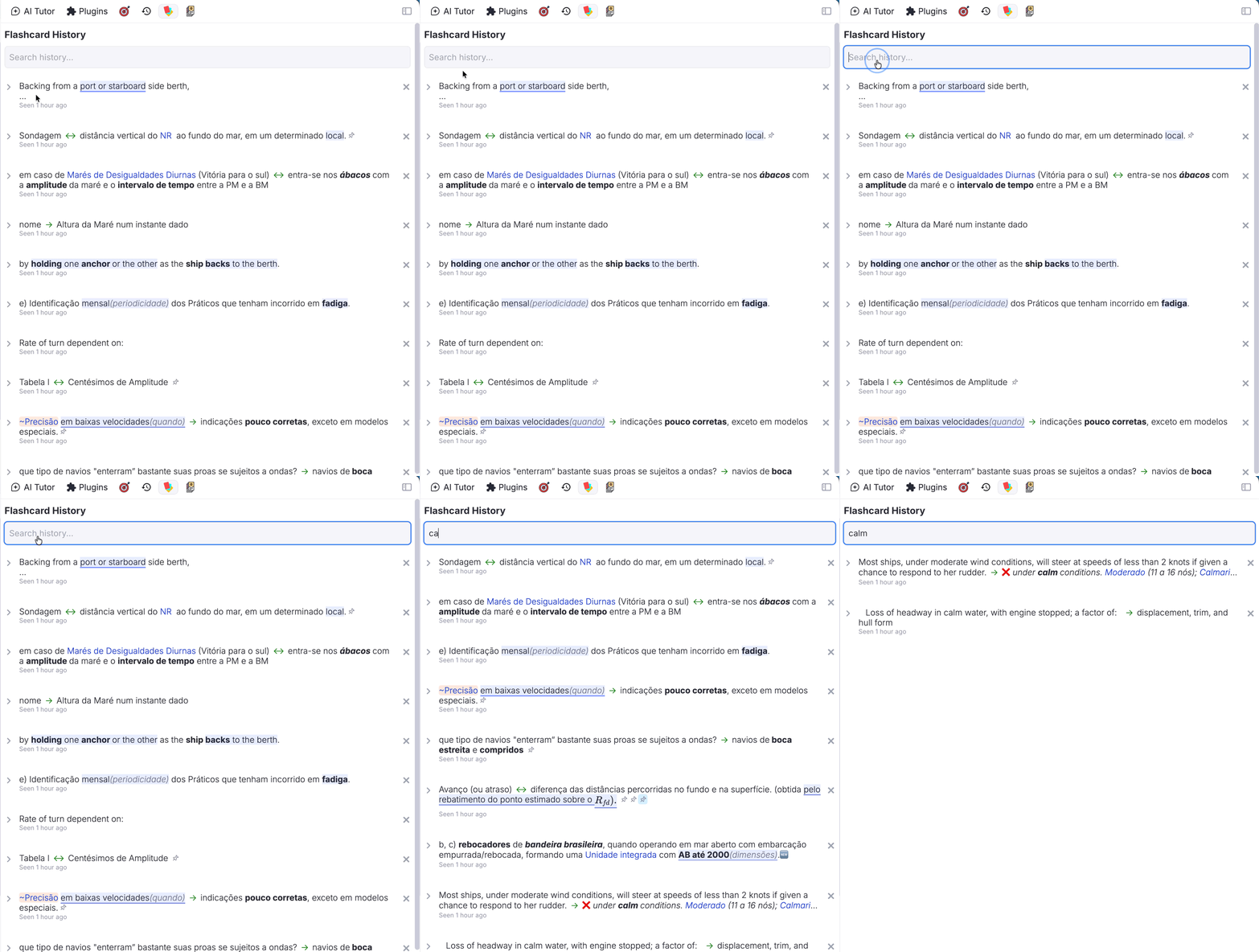
Search & Filter: Effortlessly find a card you practiced moments or days ago. The search checks both the front (question) and back (answer/context) of your cards. You can also filter the history by rating grade (Again, Hard, Good, Easy) using the radio buttons at the top.
Rating Badges: Each card in the history displays a colored badge indicating the grade you assigned to it during the review session.
Priority Badge & inline editing: Each entry also shows a priority badge, right-aligned in the badge row. Click it to open an inline slider editor directly in the row — adjust with the number field or the drag slider, then Save. No popup is opened, so editing a priority here never conflicts with the queue's target-rem selection. The change is written by the plugin's persistent background tracker, so it is saved reliably and still triggers the priority-inheritance cascade. The Incremental Rem History sidebar has the same badge, showing the IncRem priority (colored by its KB-wide percentile).
Cluster-aware recording: Inside Card Clusters, each sibling card is recorded individually as it becomes visible — not just the cluster anchor. This ensures your history accurately reflects every card you actually reviewed. Cards rated inside the Mastery Drill popup are recorded here too, for the same reason.
Retention: The list keeps the 500 most recent cards for the knowledge base you are in. See How the history lists are stored.
How the history lists are stored
Both jump-lists above — Visited Rem History and Flashcard History — live in the plugin's synced storage, which RemNote caps at 900 KB per item. Each list keeps a short text preview of every entry so the search bar can work offline, and that preview is what makes the lists grow.
Since v1.0.37 each knowledge base gets its own list, and three limits keep it comfortably inside the cap:
| Limit | Flashcard History | Visited Rem History |
|---|---|---|
| Entries kept, per knowledge base | 500 | 500 |
| Preview text stored per entry | 400 characters | 400 characters |
| Hard byte budget per knowledge base | 550 KB | 550 KB |
The preview limit applies to the whole preview — the front and the back together for a flashcard. It used to be applied to each side separately, so an entry could store twice the stated number.
The byte budget is the one that actually guarantees the cap is never hit: if your entries happen to be unusually long, the list is trimmed further until it fits, rather than being rejected on write. In normal use the 500-entry cap is what binds first.
What this means for you
- Nothing to do. Your existing history is split across your knowledge bases automatically the first time each list is read or written after updating. No entries are lost, and entries recorded before the plugin tracked knowledge bases are claimed by your primary one.
- Each knowledge base now has its own history. Previously all of them shared one list and the sidebar filtered it down to the KB you were in, so the behaviour on screen is unchanged — but a busy KB can no longer crowd out the others.
- Older entries fall off sooner than they used to, because the previous limit was 1000 entries shared across every knowledge base.
[!NOTE] If the Flashcard History sidebar stopped recording anything before you updated, this is why: the shared list had grown past RemNote's ceiling, and every attempt to add to it was refused. The update repairs it on the first write — no manual clearing needed.
The Debug: Clear Flashcard History command clears the list for the knowledge base you are currently in.
Practiced Queues History & Live Dashboard
What it does: Tracks your practice sessions and metrics.
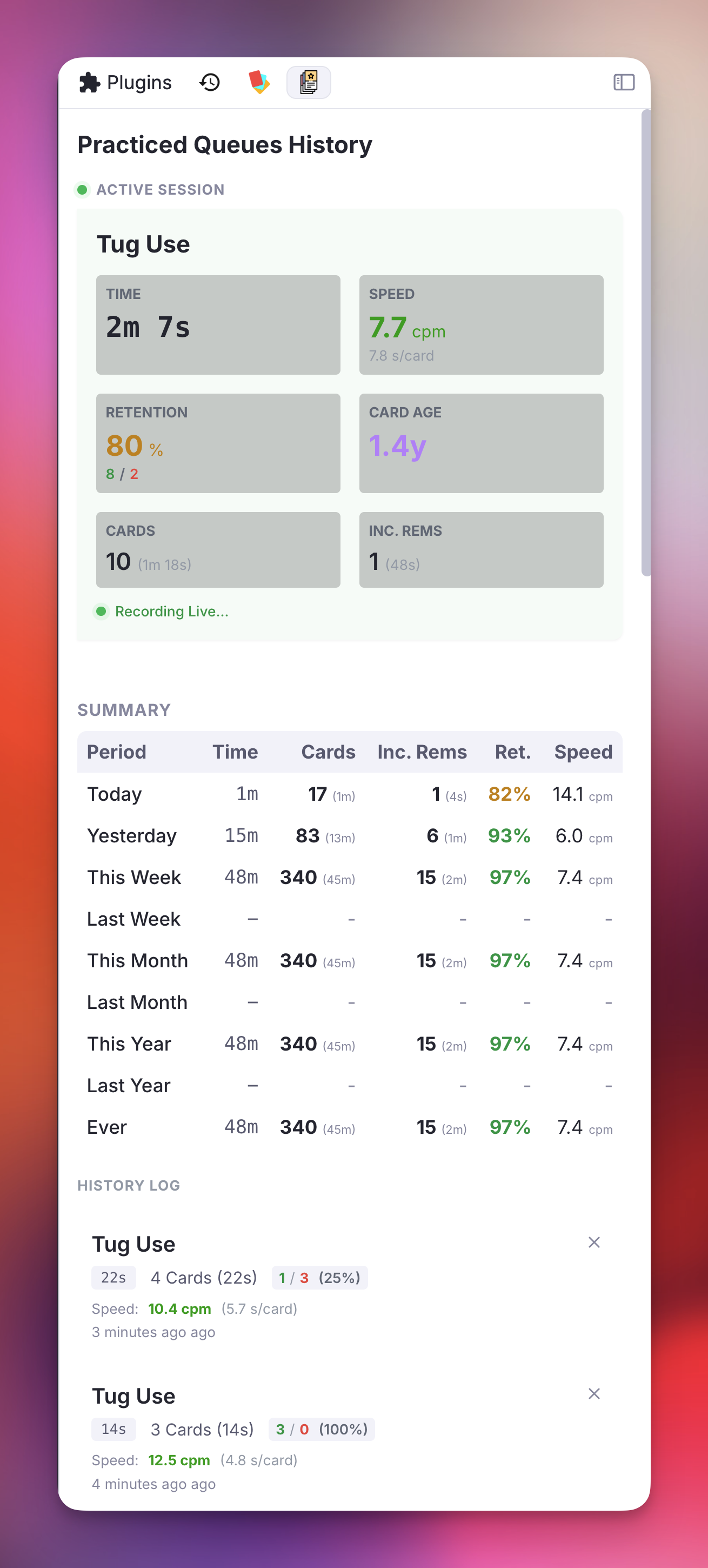
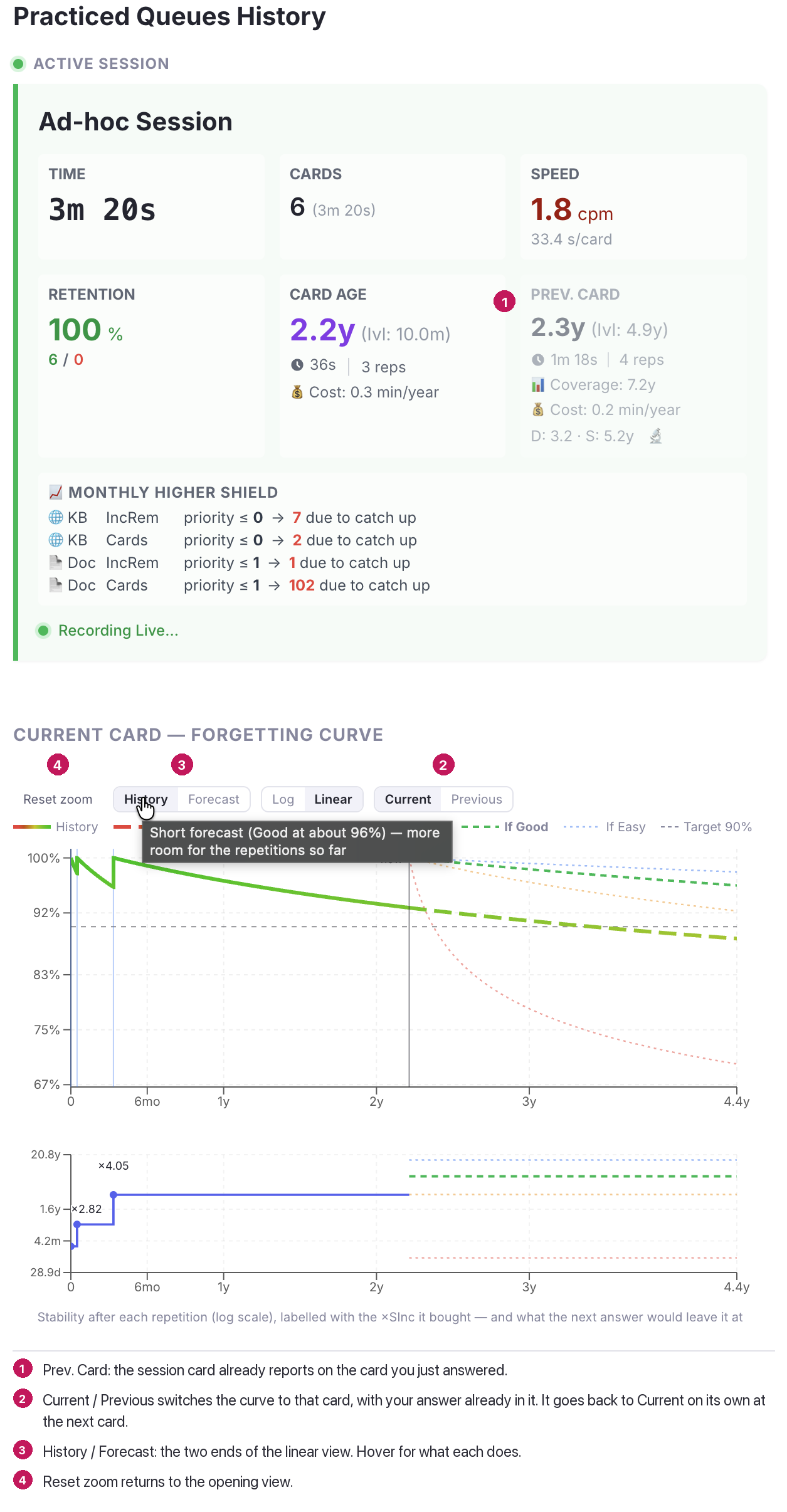
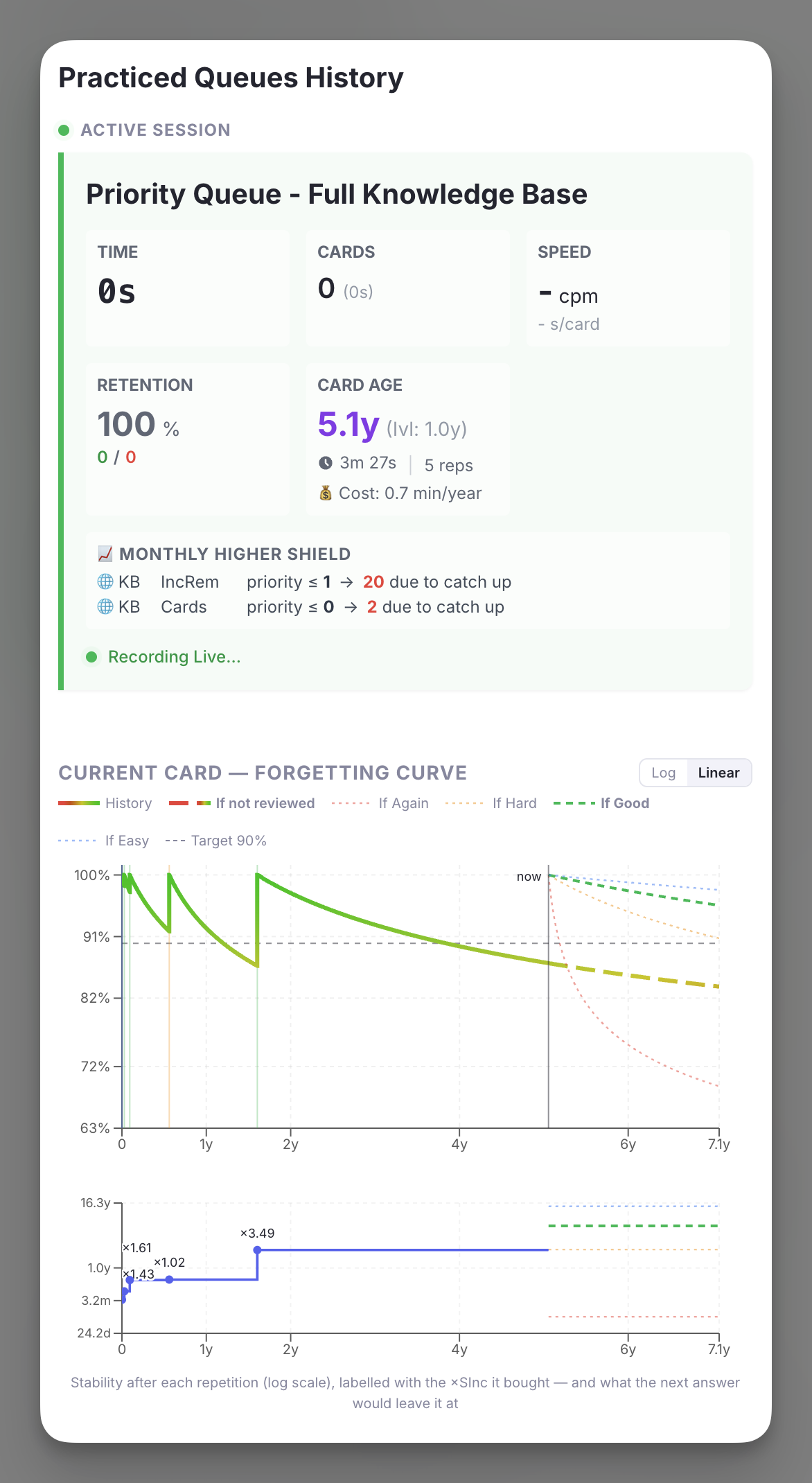
Live Dashboard: Displays real-time metrics for your currently active queue session, including current speed, retention rate, and the age of the exact card you are reviewing.
Forgetting Curve: Below the live session card, the Forgetting Curve charts the card you are looking at — where its retrievability has been, and where each of the four answer buttons would send it. Set Forgetting Curve to Hidden in the settings below to remove it.
The Current / Previous switch in its header shows the card you just answered instead — the same previous card the session card reports on, with that answer already in its curve. It goes back to Current on its own as soon as the queue moves to the next card.
Metrics Collected
| Metric | Description |
|---|---|
| Total Time | Total time spent in the session |
| Retention Rate | Remembered vs. Forgot percentage |
| Speed (CPM / s/card) | Cards per minute and seconds per card, colour-coded |
| Card Age | Age of the card currently being reviewed (live view only) |
| Cost | Minutes per year of card age/coverage |
| Interval | Time until next scheduled review (prev/current card) |
| Sessions Summary | Aggregated stats for Today, Yesterday, This Week, Last Week, and more |
| Flashcards | Count and time for regular flashcards |
| Incremental Rems | Count and time for IncRems reviewed during the session — tracked from the queue widget, the Editor Review Timer, and the Editor Review popup |
Speed Colour Coding
Every speed reading — in the live session card, in the History Log, and in the Sessions Summary table — is tinted on a red → yellow → green gradient. The colour is always derived from the cards-per-minute pace, so a given pace looks identical whichever unit it is displayed in.
Out of the box the two ends of that gradient are measured from your own card history, so "slow" and "fast" mean slow and fast for you — see Choosing your own limits below. Until the first measurement completes, and whenever you switch to fixed limits, the gradient falls back to two absolute values:
| Colour | Cards per minute | Seconds per card | Reading |
|---|---|---|---|
| 🔴 Red | ≤ 1.5 cpm | ≥ 40 s/card | Slow — long cards, heavy material, or interruptions |
| 🟡 Yellow | ≈ 2.75 cpm | ≈ 22 s/card | Mid-range |
| 🟢 Green | ≥ 4 cpm | ≤ 15 s/card | Fast — short cards or well-known material |
Between the two limits the hue shifts continuously with the pace; below and above them it stays fully red and fully green. Since seconds per card is the inverse of cards per minute, the s/card scale runs the other way — lower s/card is greener.
The gradient is a pace indicator, not a quality score: reading-heavy or cloze-dense material sits naturally at the red end, and speed says nothing on its own without the Ret. column beside it.
Choosing your own limits
The two ends of the gradient are configurable under Queue Dashboard in the IE Settings popup, in either of two modes.
Calibrated from your card history — the default. An absolute cards-per-minute standard says little about a collection of long extracts, or one of one-word clozes, so instead of two fixed numbers the plugin measures the average seconds per card across your real flashcard repetitions and places the gradient around it:
| Seconds per card | |
|---|---|
| 🟢 Fully green | your average − the margin |
| 🟡 Mid-gradient | your average |
| 🔴 Fully red | your average + the margin |
Two settings shape the measurement:
- Calibration Period — how far back it looks: Ever, Last 1 year, Last 1 month, or Last 1 week. A short window tracks your current form and moves with it; a long one is steadier and harder to shift.
- Margin Around the Average — how many seconds either side of your average the colour saturates, 10 s by default. With a 24 s/card average and a 10 s margin, 14 s/card and faster is fully green, 34 s/card and slower fully red. A smaller margin makes the dashboard react sharply to small changes of pace; a larger one only flags real outliers.
While calibrated mode is selected, the Queue Dashboard settings section shows the average it is working from — in both cpm and s/card, with the number of repetitions behind it and the green and red points your current margin produces — plus a Recalibrate button:
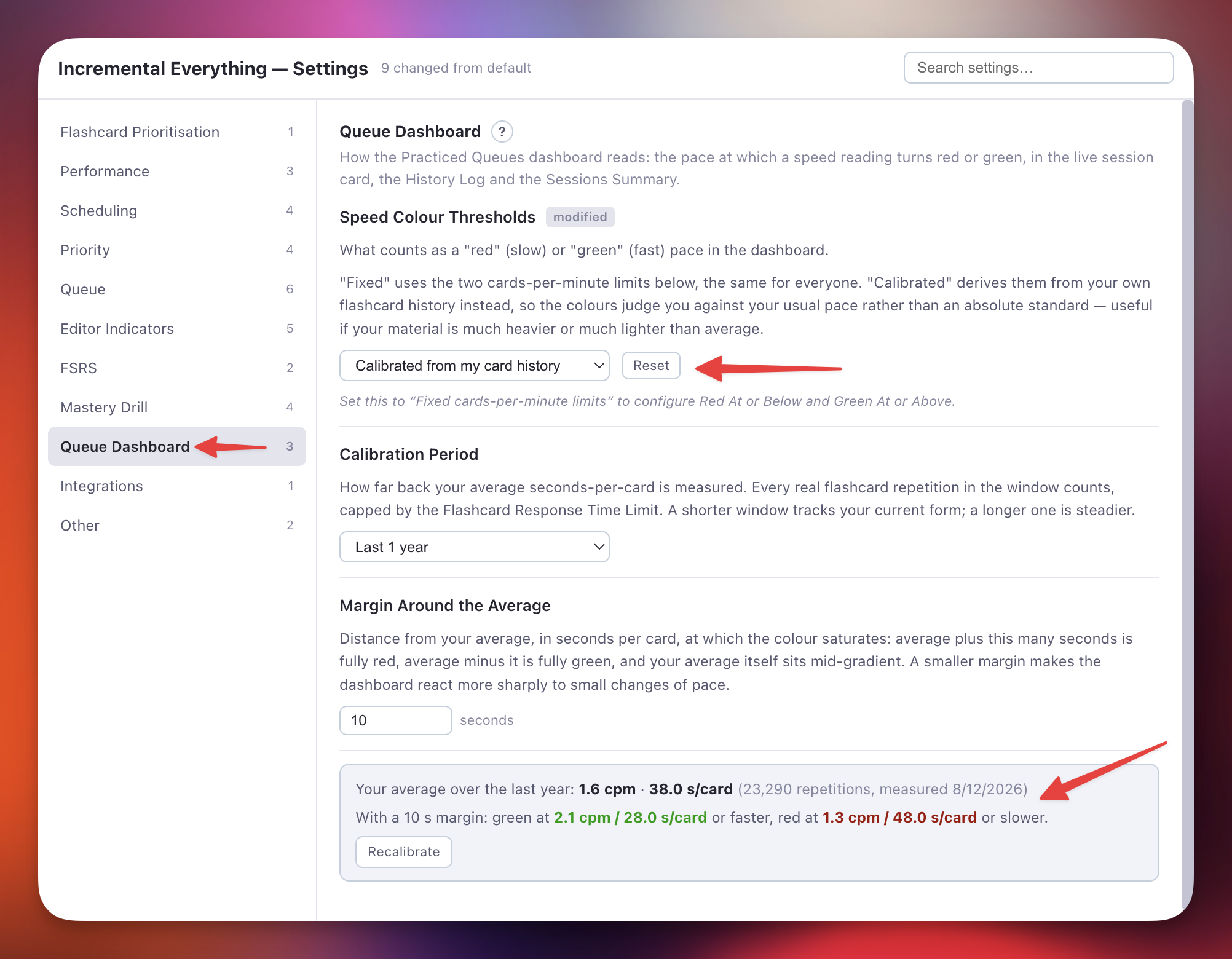
Every real repetition in the window counts — Again, Hard, Good and Easy — with each response time capped by the Flashcard Response Time Limit, so a card left on screen while you made coffee cannot drag your average up by minutes. Ratings that are not real reviews (Too Early, leech views, resets, manual date or ease changes) are excluded.
In calibrated mode the Sessions Summary carries a caption spelling out the scale actually in force — your measured average, how many repetitions it came from, and the resulting green and red points — with a Recalibrate link beside it:
Speed colours calibrated on 38.0 s/card average over the last year (23,290 reps): green at 28.0 s/card or faster, red at 48.0 s/card or slower. Recalibrate
How often it measures. Reading every card's repetition history is far too heavy to repeat on each render, so the result is cached on your device and re-measured only when it is missing, when it came from another knowledge base, when you change the Calibration Period, or when it is more than seven days old. Use Recalibrate to force a fresh measurement at any time — after a long study run, say. While the first measurement is in flight the dashboard keeps colouring with the fixed limits, and if the window contains no reviews at all it says so and stays on them. In practice this means one history walk the first time you open the dashboard, then nothing for a week.
Fixed limits — the alternative, for when you would rather judge against an absolute standard than a moving one. Set Red At or Below and Green At or Above in cards per minute to whatever suits your material; they apply exactly as typed, the same on every device and in every knowledge base, and nothing is ever measured. The 1.5 / 4 cpm defaults are what the dashboard used before either mode existed.
Both modes affect only the Practiced Queues dashboard. The Study Dashboard has its own speed columns and still uses the fixed 1.5 / 4 cpm gradient.
Cluster-aware tracking: Card count, time, and retention are tracked per sibling card in a cluster — not just the cluster anchor. Average speed (s/card) and total card count correctly reflect all siblings rated.
IncRem tracking across all review surfaces: IncRem count and time are recorded no matter where the review takes place — in the queue widget, via the ⏱️ Start Timer (editor timer), or via the Editor Review popup (manual-minutes confirm). If you open an IncRem in the editor directly from the queue (Review in Editor), the time is counted once in the same session rather than creating a duplicate engagement. Editor-only reviews (not started from a queue) appear as a separate "Editor Review" session that auto-saves after 60 minutes of inactivity.
Monthly Higher Shield Catch-Up
The live session card has a small 📈 Monthly Higher Shield block at the bottom that ties the current session back to your recent Priority Shield history. Up to four rows appear — Knowledge Base × Document, each split between Incremental Rems and Cards — using the same line format as the threshold-slider caption in the Weighted Shield popup:
🌐 KB · Cards — priority ≤ N → X due to catch up 📄 Doc · IncRem — ✓ At monthly higher priority shield (≤ N)
What it tells you. "Monthly higher shield" is the highest absolute-priority cutoff your shield reached in the last 30 days — the deepest into your low-number, high-importance priorities your processing kept up with, recorded once per day on the Priority Shield Graph. The catch-up count is then the number of items currently due at-or-above that historical cutoff (priority ≤ N), excluding items you have already reviewed in the current session — so this number drains live as you clear the top of the queue.
How to read it. A non-zero count is the smallest top-priority backlog you would need to clear, in this session or soon, to put the shield back at the highest level it has touched in the last month. When the count reaches 0 the row collapses to the ✓ At monthly higher priority shield form — meaning the scope's most important items are already processed and the next shield record could match or exceed the recent high. Rows are shown only when shield history exists for that scope/item-kind combination, so a fresh KB or a never-visited document will simply have fewer (or no) rows.
This is intentionally a passive readout — it doesn't gate or sort the queue. It's there so you can see, at a glance, how much top-priority work stands between you and your best recent protection level without opening the Weighted Shield popup.
Why use it: Gain insights into your study habits, track your velocity, and monitor your usage of incremental reading tools alongside standard flashcards.
Interaction: Clicking on a session opens the queue on that document straight away — the same route as its Practice button — so you can pick up where that session left off. Sessions with no document behind them are not clickable: editor reviews (IncRems reviewed in the editor with no queue open) and ad-hoc sessions (the Global Queue, embedded queues). Both take the name of the first Incremental Rem they touch, so they can look like a queue — hover one and the tooltip says there is no queue to reopen.
Export & Import: Back up your practice session history across all Knowledge Bases to a local JSON file, and import it back at any time (duplicate sessions are automatically skipped).
Speed Units in the Sessions Summary
The Sessions Summary table's Speed column has a small unit button in its header. Click it to switch every row between cpm (cards per minute) and s/card (seconds per card) — the same two readings the per-session History Log below always shows side by side.
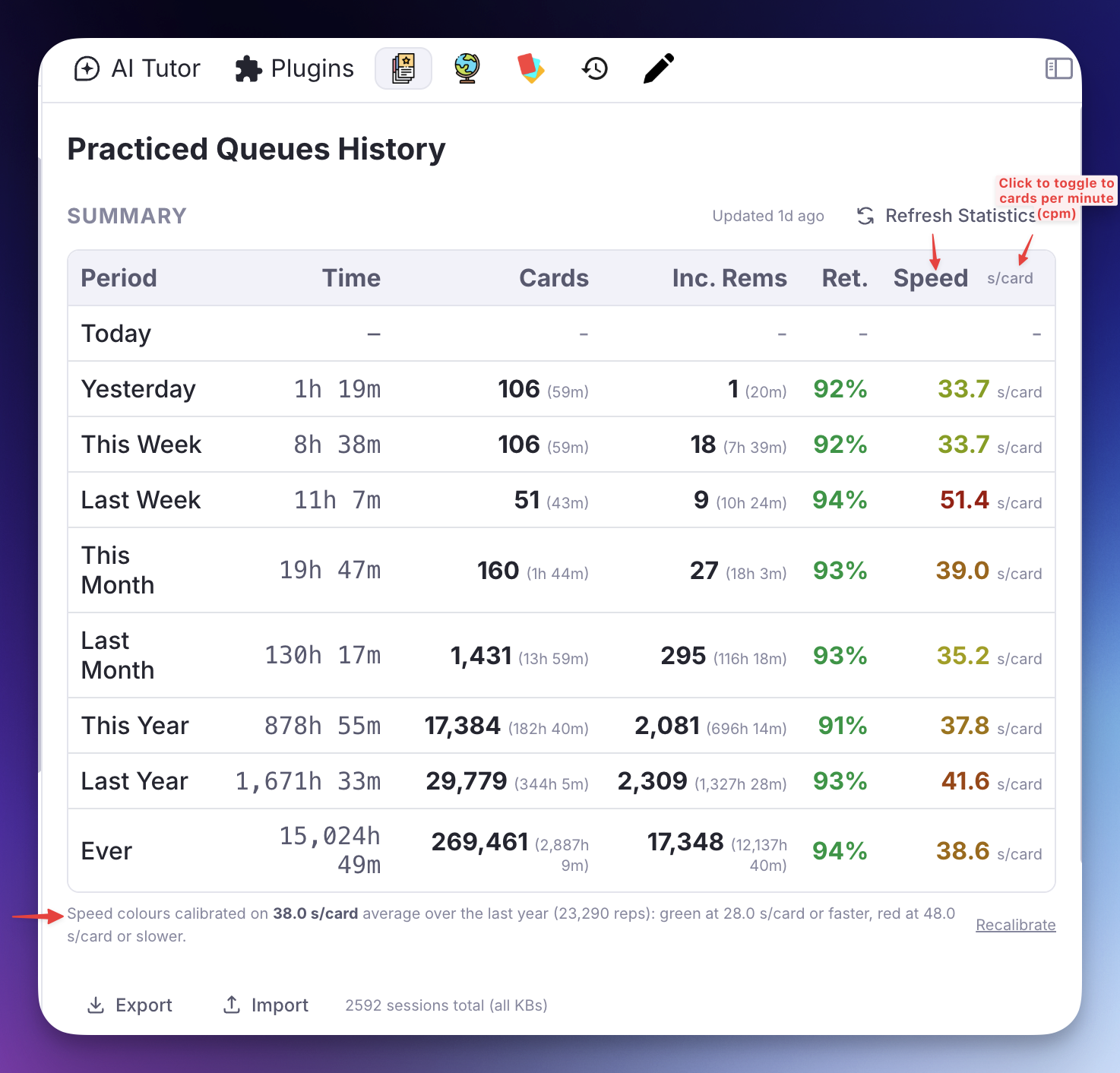
The choice is stored on your device (not synced), so the table opens in your preferred unit in every later session, while another device can keep its own.
Values are colour-coded on the same red → green gradient as the live session card and the History Log, and the colour follows the underlying pace rather than the printed number — so switching to s/card recolours nothing. See Speed Colour Coding.
Refresh Statistics — Authoritative Summary Recompute
Above the Sessions Summary table you'll find a Refresh Statistics button alongside an "Updated N ago" timestamp. Clicking it walks RemNote's durable state — every card's repetition history, every Incremental Rem's history slot, and the Dismissed powerup's preserved history — and recomputes the per-period totals from ground truth instead of from the live event listeners.
It also runs on its own at startup. When the plugin builds its card priority cache as RemNote starts, it already reads every card, and the recompute reuses that read instead of making its own. Incremental Rem reviews come from the Incremental Rem cache loaded at the same time, and only the Dismissed histories are read directly. The stored summary is rewritten only when it has changed. This happens only in Full Mode with flashcard prioritisation on, where that cache is built; in Light Mode, or with prioritisation off, use the button.
Why it exists: event-listener tracking can miss sessions when the queue is interrupted without firing QueueExit (tab closed, page navigated, plugin reloaded), and can over- or under-count IncRem time in certain engagement edge cases. The authoritative recompute reconciles the Summary against the same data RemNote uses for its own statistics.
How it works:
- A chunked progress bar shows progress through cards → IncRems → Dismissed rems. The recompute is cancellable at any time.
- After the first recompute, the Summary is sourced from authoritative aggregates. Live listener data continues to fill the gap after the recompute timestamp, so today's ongoing session still updates the totals in real time.
- Listener data is never deleted. Both the raw recent-session list and the rolled-over older buckets remain intact and continue to power the per-session History log below the Summary.
- For days before 2026-01-30 (when the Dismissed powerup was introduced), the Summary takes
MAX(authoritative, listener)per field per day — recovering reps from rems that were dismissed-and-deleted before powerup-based history preservation existed, when they were captured by the listener at the time. - Filters mirror RemNote's own conventions: only flashcard scores
Again/Hard/Good/Easycount (TOO_EARLY,VIEWED_AS_LEECH,RESET,MANUAL_DATE,MANUAL_EASEare excluded); for IncRems only real reviews count (rescheduledInEditor,manualDateReset, and lifecycle markers are excluded). Flashcard response time is capped by the Flashcard response time limit setting; IncRemreviewTimeSecondsis intentionally uncapped (an IncRem rep can legitimately span several minutes of reading). - A diagnostic per-day diff is logged to the browser console after each Refresh — useful when investigating discrepancies between the authoritative and listener views.
When to use it: click Refresh whenever you want to confirm the Summary numbers match RemNote's view of your practice — for example, if a session was interrupted, after restoring a backup, or simply to validate at the end of a study day. For knowledge bases with many IncRems, the recompute may take 30 s–2 min and surfaces real-time progress.
Where the results are stored: since v1.0.37, in one synced item per knowledge base. Previously every KB's daily totals shared a single item, so a Refresh rewrote and re-synced all of them — for one measured knowledge base, half of what was written on every Refresh belonged to KBs that had not been studied in for months. Each KB's history is now written on its own, and knowledge bases you are not studying are never touched.
No history is discarded. These totals go back as far as your records do — over a decade, if you imported an older study log — and the Ever row of the Sessions Summary depends on all of it. Splitting the storage per knowledge base is precisely what keeps holding all of it affordable, rather than having to drop old days to stay under RemNote's per-item ceiling. Your existing totals are split automatically, without a recompute, the first time the plugin loads after updating.
Mastery Drill
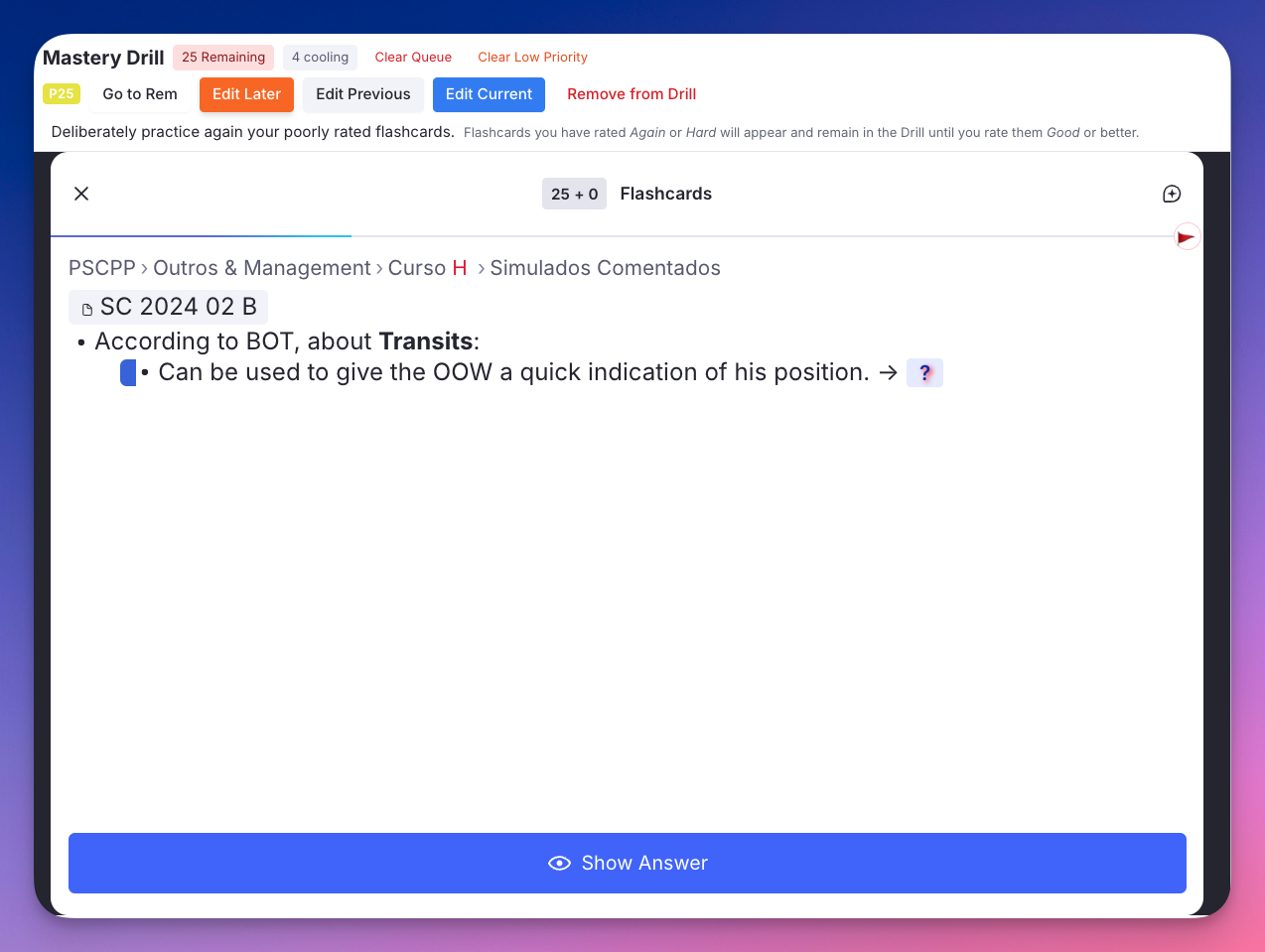
Inspired by SuperMemo's Final Drill, the Mastery Drill creates a focused sub-queue of cards you have recently struggled with, so you can target them deliberately until they stick.
Off by default — switch it on to use it
Turn on Enable Mastery Drill in the IE Settings popup (command is, under Mastery Drill) and reload RemNote.
While the drill is on, the plugin listens to every flashcard rating and keeps a list of the cards that need drilling, and it registers the drill popup, its command and the sidebar notification. Off, none of that runs — which is why it is opt-in rather than always present. Your flashcard and Practiced Queue history are unaffected either way.
Upgrading: this replaces the old Skip Mastery Drill switch. If you had turned that on, the drill stays off; the value is inverted and carried over for you.
How It Works
- Any flashcard you rate Forgot or Hard is automatically added to the Mastery Drill queue.
- Forgot cards usually already have a RemNote relearning step. If you complete it successfully (Good/Easy), the card is cleared from the drill. The drill ensures you actually complete the relearning step, especially useful when studying document-scoped queues rather than the global queue.
- Hard cards are the real differentiator. Drilling them is equivalent to reviewing slightly ahead of time — FSRS accounts for this and the resulting interval is nearly unchanged. The purpose is to raise retrievability close to 100%.
- Unlike SuperMemo, these reviews are recorded in your repetition history.
- Cards stay in the drill until you rate them Good or Easy inside the Mastery Drill.
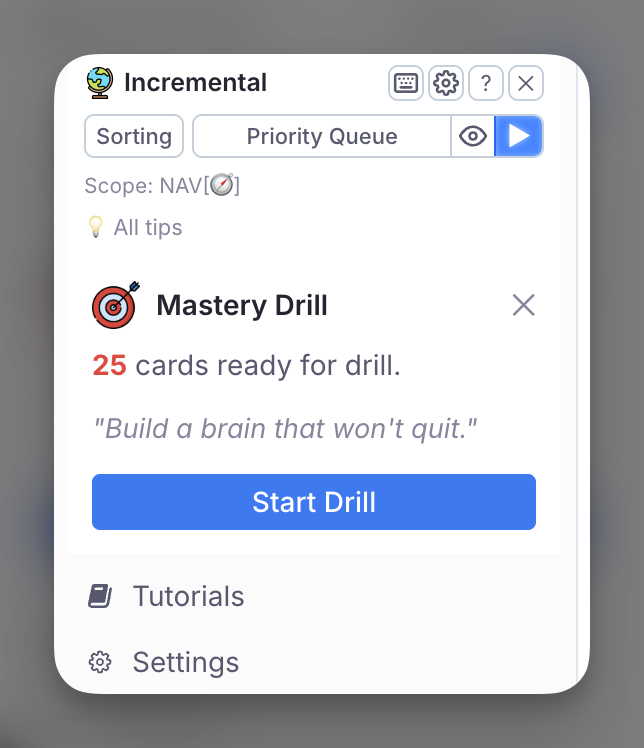
- A periodic notification widget appears in the Left Sidebar when ≥ 10 cards are pending, with a motivational phrase and a direct Start Drill button.
- If the Incremental RemNote panel is collapsed, the notification is not shown as a card — the panel's 🎯 icon carries the drill instead, with the same count on a badge.
Known limitation — Card Clusters
Inside a cluster, RemNote reports only the cluster anchor to plugins: the visible sibling advances on screen, but the card identity the plugin receives stays on the first one. The Mastery Drill inherits two consequences from that, both verified by measurement:
- Sibling ratings mostly don't reach the drill. Rate the first sibling Good and later siblings Forgot/Hard and nothing is added; rate several siblings Forgot/Hard and only the first one is added. In practice the drill tracks the anchor of a cluster and nothing else.
- The per-card toolbar actions target the anchor. On siblings 2 and beyond, Remove from Drill, Edit Later, Go to Rem, Edit Current and the priority badge act on the anchor rather than on the card you are looking at.
This is a limitation of what RemNote exposes, not something the plugin can work around, and it is left as-is: clusters rarely reach a drill queue, and the failure mode is an under-populated drill — never a wrong rating, and never a lost repetition. Everything outside clusters is unaffected.
The regular-queue drill does not depend on those reports for ratings: it reads them back from each card's history, so a cluster card rated Good or Easy there leaves the drill.
Why Use It
Use the Mastery Drill to review only items you struggled with recently, ensuring you master them before they fall back into the scheduled queue. Working in a difficult-only mode puts your brain on an emergency alertness level — you approach repetitions differently when recall failure is expected, which is often enough to finally wrap your mind around harder material.
The Mastery Drill is optional. Not using it has no negative consequences: the scheduler will test you again at the next scheduled repetition and handle failures accordingly. But using it costs little and significantly increases success on subsequent repetitions.
Minimum Delay
Cards rated Again or Hard enter the drill queue immediately but are held back for a configurable cooldown period (default: 180 minutes) before appearing in the drill. This prevents you from re-reviewing the same card seconds after rating it, giving the initial repetition time to consolidate. Rating a card Again or Hard again — inside the drill or in a regular queue — restarts its delay. While cards are cooling, a "X cooling" badge is shown in the drill toolbar. The notification widget in the Left Sidebar also excludes cooling cards from its count, so it only shows cards that are genuinely ready to drill.
Where the Drill Runs
The drill runs in one of two places, chosen with Where the Drill Runs in the IE Settings popup (Mastery Drill):
| Regular queue (default) | Popup | |
|---|---|---|
| Where | RemNote's own Practice queue | Its own window, with an embedded queue |
| Widgets under the card | All of them: the card info bar and other plugins' widgets (context trees, repetition history…) | None: RemNote switches plugin widgets off in embedded queues |
| Other cards of a drill Rem | Skipped by the plugin, behind the Reveal Delay | Never shown |
| Tools | Remove from Drill and the Card List, in the drill bar | The toolbars described below |
dri, the sidebar notification and the panel's 🎯 follow the setting. The commands Mastery Drill (popup) and Mastery Drill (regular queue) start either one whatever it says.
The regular-queue drill
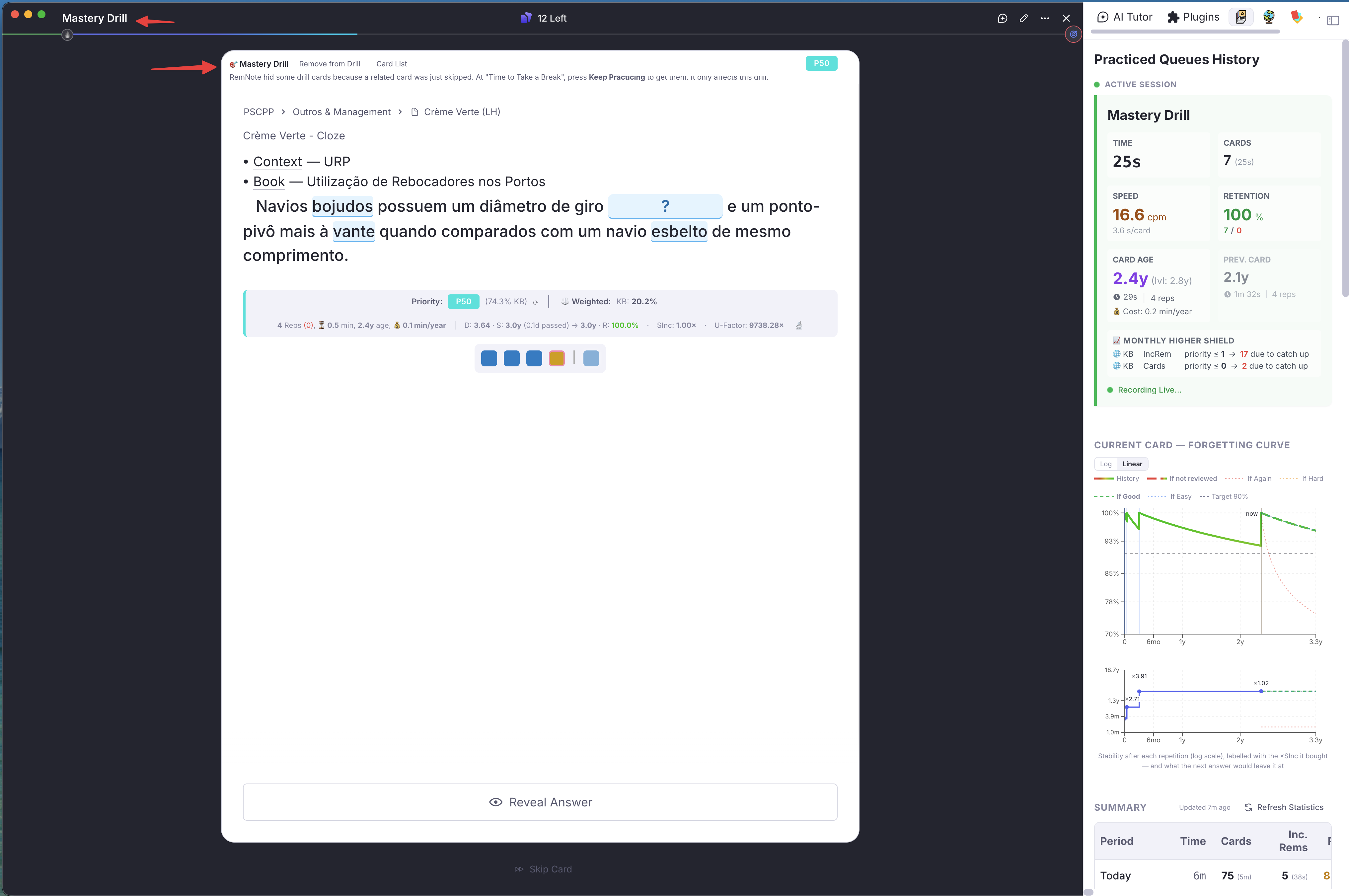
RemNote practises whole Rems, not a hand-picked set of cards. So each session creates a temporary Mastery Drill document holding the drill Rems, opens it in Practice All, and deletes it when you leave the queue. RemNote offers every card of those Rems, and the plugin skips the ones that are not ready drill cards.
- Reveal Delay (default 500 ms): each card stays hidden this long, then fades in, so a skipped card is not seen. Most skips take under 150 ms; one that comes right after a rating can take longer and show briefly. A longer delay hides more of them, but every card appears that much later.
- "Time to Take a Break": skipping a card counts as seeing it, and RemNote then hides the other cards of that Rem for an hour, sometimes including its drill card. When RemNote shows its "Time to Take a Break" screen for them, the drill presses Keep Practicing itself and a toast says how many drill cards it is continuing with. It affects only the drill session, not your other queues. If the press ever fails, the screen stays up with Keep Practicing highlighted and a note under the buttons: press it, or Esc.
- The drill bar, under the queue's top bar, has Remove from Drill (takes the card on screen out of the drill) and Card List (the Card List, in its own popup).
- Ratings work as in any queue: Again/Hard keep the card in the drill and restart its minimum delay, Good/Easy take it out. The session is recorded as Mastery Drill in the Practiced Queues History.
- Card Cluster cards: RemNote tells plugins nothing when a cluster card is rated, so the drill reads the rating from the card's own history a moment after the next card appears (or after you leave the queue). A cluster card rated Good or Easy leaves the drill like any other, and Again/Hard restarts its delay. When the drill starts, it also drops any card whose last rating since it entered the drill was Good or Easy — which catches cluster cards rated Good in an ordinary queue.
The Queue Management, Editor Access and Keyboard Shortcuts sections below describe the popup drill.
Queue Management
The drill toolbar (top row) provides several queue management tools:
- List Cards: Lists every card in the drill and whether RemNote can show it — see Card List. Clicking the Remaining badge, or pressing L, opens it too.
- Clear Queue: Empties the entire Mastery Drill queue at any time to start fresh.
- Clear Low Priority Cards: Opens a distribution view showing how many drill cards fall into each of 20 priority buckets (0–5, 6–10, …, 96–100). Set a priority threshold and remove all cards above it in one click — useful when the queue has accumulated low-priority cards that aren't worth drilling urgently.
- Old Items Warning: If items linger past the configured threshold (default: 7 days), a warning badge appears. Hover it to read an explanation of why stale items may be better left to the scheduler. Clear them with one click to keep sessions focused on fresh struggles.
Card List
The drill toolbar counts a card as Remaining from its id alone, but RemNote only shows cards it can still practise. A card that was deleted, or switched off, stays in the count and never appears — the toolbar says 1 Remaining while the queue says You've finished practicing all your cards!. List Cards shows what is actually in the drill.
The list opens under the toolbar, in place of the queue. The queue is only hidden, so ← Back (or Esc) returns to the same drill session.
Each row shows the card's text, its type (e.g. Cloze (…), Forward Card), where the Rem sits, its priority, when it entered the drill, the minutes left if it is still cooling, and its last rating. A status tag says whether RemNote will show it; hover the tag for what to do about it.
| Status | Meaning |
|---|---|
| OK | RemNote will show the card. |
| Last rated Good | The last rating was Good or Easy, so the card should already have left the drill. |
| Paused deck | The card sits inside a paused deck. |
| Card deleted | The card no longer exists — its Rem was deleted, or the cloze or back side it came from was edited away. |
| Rem deleted | The card record survives but its Rem is gone. |
| Disabled by ancestor | An ancestor carries Disable Descendant Cards. |
| In a table | The Rem is in a table, where RemNote ships cards switched off. |
| Cards off on Rem | Enable Cards is off on the Rem. |
| Direction off | The Rem's flashcard direction no longer includes this card's direction. |
| Cloze/back removed | The cloze or back side the card was made from is no longer in the Rem. |
| Card switched off | The card was switched off on its own; open the Rem and run /Enable All Cloze Cards, or click the greyed cloze → Enable this card. |
| Not surfaced | RemNote does not show the card, and no Rem-level cause explains it. |
Cards RemNote cannot show are listed first, and Remove N unplayable takes them all out at once. Per row, Go to Rem opens the Rem (closing the drill), ↗ opens it in a browser tab and keeps the list open, and Remove takes the card out of the drill.
| Key | Action |
|---|---|
| ↑ / ↓ | Choose a card |
| Enter | Go to the chosen card's Rem |
| Delete | Remove the chosen card from the drill |
| Shift+Delete | Remove every card RemNote cannot show |
| Esc | Back to the drill |
Editor Access
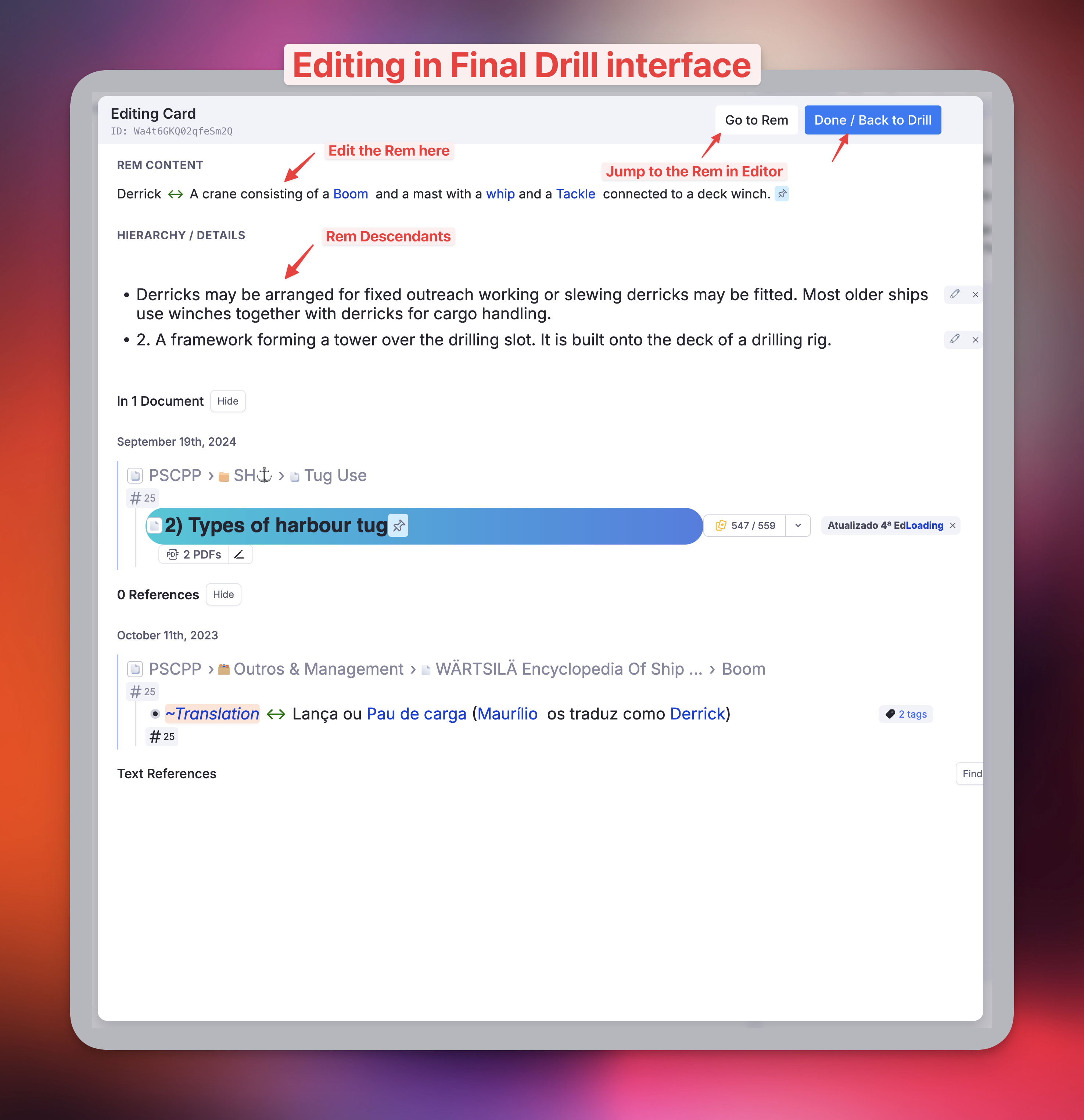
The drill toolbar (bottom row) provides per-card actions for the currently visible card:
- Priority Badge: Shows the current card's priority. Click it to open an inline priority editor directly in the toolbar — no popup needed.
- Go to Rem: Opens the Rem in RemNote's native Editor (closes the drill popup; a resume trigger re-opens it on return).
- Edit Later: Prompts for an optional note, marks the card's Rem with the Edit Later powerup (storing the note in the Message slot), and removes the card from the drill queue.
- Edit Previous: Opens an inline editor for the card you just rated — useful for quick corrections after seeing the answer.
- Edit Current: Opens an inline editor for the currently visible card.
- Remove from Drill: Removes the current card from the drill queue without rating it.
Keyboard Shortcuts
The Mastery Drill popup supports the standard RemNote queue keyboard shortcuts:
| Key | Action |
|---|---|
| 1 | Again (if answer revealed) — or reveal answer first |
| 2 | Hard (if answer revealed) — or reveal answer first |
| 3 / Space | Good (if answer revealed) — or reveal answer first |
| 4 | Easy (if answer revealed) — or reveal answer first |
| ← | Go back to the previous card |
| → | Skip the current card (can be undone with ←) |
| L | Open the Card List |
If the answer has not yet been revealed, the first rating keystroke reveals it. The second keystroke records the rating. Shortcuts are suppressed when focus is on a text input or editable field.
How to Use
Right Sidebar Tabs
Three tabs are added to the right sidebar:
- Rem History — Navigate through your knowledge base as usual. Click items in the list to jump back.
- Flashcard History — Start a flashcard queue. As you rate cards, they appear here. Click a Rem to open it in the Editor.
- Practiced Queue History — Monitor session stats and click on a queue name to navigate back to it.
Mastery Drill
- Rate any flashcard Forgot or Hard during your regular queue.
- A notification will appear periodically in the Left Sidebar when the queue accumulates ≥ 10 pending cards.
- Open the drill using the
Mastery Drillcommand in the Command Palette (Quick Code:dri), or click Start Drill in the notification widget. It opens in the popup or the regular queue, per Where the Drill Runs. - The queue clears as you master cards (rate them Good or Easy).
Settings
| Setting | Default | Description |
|---|---|---|
Auto focus Queue Dashboard |
Off | When enabled, opens the Practiced Queues dashboard in the Right Sidebar automatically every time you enter a queue — no need to open the sidebar manually. It also restores the dashboard after you press Next or Dismiss on an Incremental Rem, bringing you back to the live session metrics once the sidebar was used for editing (Rem notes) or RemNote auto-focused its own pane (PDF/HTML). |
Flashcard Response Time Limit |
180 s | Caps recorded study time per card to prevent inflated stats when you step away from your device. |
Forgetting Curve |
Shown | Draws the current card's Forgetting Curve at the top of the dashboard. Set to Hidden to remove it. |
Enable Mastery Drill |
Off | Master switch for all Mastery Drill features: the drill, its sidebar notification and commands, and the tracking of Again/Hard cards. Flashcard and Practiced Queue history are not affected. Requires a reload. |
Old Items Threshold |
7 days | Number of days after which a Mastery Drill item is flagged as stale. Hover the warning badge in the toolbar for an explanation. |
Mastery Drill Minimum Delay |
180 min | A card rated Again or Hard will not appear in the drill until at least this many minutes have passed. Prevents re-reviewing the same card too soon after the initial rating. |
Disable Mastery Drill Notification |
Off | Hides the periodic Left Sidebar notification widget. The notification only counts cards that have passed the minimum delay and are genuinely ready to drill. |
Where the Drill Runs |
Regular queue | Regular queue (RemNote's own queue, with every plugin widget) or Popup (embedded queue). See Where the Drill Runs. |
Reveal Delay (regular-queue drill) |
500 ms | How long each card stays hidden before it fades in during a regular-queue drill, so skipped cards are not seen. 0 turns it off. |
📖 See Plugin Settings Reference for the full settings list.
Commands
| Command | Quick Code | Description |
|---|---|---|
Mastery Drill |
dri |
Opens the Mastery Drill, in the popup or the regular queue per Where the Drill Runs. |
Mastery Drill (popup) |
— | Opens the drill in the popup, whatever the setting says. |
Mastery Drill (regular queue) |
— | Opens the drill in RemNote's own queue, whatever the setting says. |
Debug: Clear Flashcard History |
— | Clears this knowledge base's flashcard history (useful if sync errors occur). |
📖 See Plugin Commands Reference for the full command list.