AI Transcription of PDF Highlights
The text RemNote stores with a PDF highlight is the PDF's raw text layer: spaces go missing, formulas are flattened into symbol soup and numbering is lost. AI Transcribe replaces that text with a clean transcription of the highlighted region of the page, so the highlight is ready to extract without retyping anything.
| Raw highlight text | After ✨ AI Transcribe (as written into the Rem, before RemNote renders it) |
|---|---|
Geometrical similarity means that the ratio of a full-scale ‘length’ (length, width, draft, etc.) L s to a model-scale ‘length’ L m is constant, namely the model scale l: L s ¼ l$L m (1.1) |
*Geometrical similarity* means that the ratio of a full-scale 'length' (length, width, draft, etc.) $L_s$ to a model-scale 'length' $L_m$ is constant, namely the model scale $\lambda$: $$L_s = \lambda \cdot L_m \tag{1.1}$$ |
In RemNote the italics show as italics and each $…$ as a typeset formula.
What you get:
- Formulas as LaTeX — inline inside a sentence, display on their own line, numbered equations keep their number (
\tag{1.1}). - Key terms and concepts in bold, and the page's own italics kept.
- Lists keep their printed markers (
•,–,1.), one item per line. - Everything stays in the highlight Rem — paragraphs and formulas are separated by soft line breaks, never split into several Rems.
- Anything unreadable is marked
[illegible]rather than guessed.
How it works
A RemNote plugin cannot start programs on your computer, so the plugin works with a small helper that you run locally:
- The plugin sends the helper the highlight's exact position on the page, plus its raw text.
- The helper renders just that region of the PDF as an image and hands it to your own Claude Code (
claude) command. - The plugin writes the answer back into the highlight as rich text.
It runs on your Claude subscription — no API key, nothing to pay beyond your plan. A highlight takes about 3–5 seconds. The helper only accepts connections from your own computer.
Requirements: RemNote desktop, Python 3, and Claude Code logged in to your Claude account.
The same helper also powers Pin Source Quote, which needs only Python and PyMuPDF — no Claude account.
Setup
- Install Claude Code (claude.com/claude-code) and run
claudeonce in a terminal to log in. -
Install PyMuPDF, the PDF renderer the helper uses:
-
Download the helper:
-
Start it:
It prints
AI OCR helper on http://127.0.0.1:3457. Leave the terminal open — or, on macOS, start it at login instead.
To check it is running, open http://127.0.0.1:3457/ or run curl http://127.0.0.1:3457/: the answer shows "ok": true and where it found claude.
Start the helper at login (macOS)
So you never have to start it by hand, register it as a login item:
-
Find your Python's full path — it must be the one where you installed PyMuPDF:
-
Save the following as
~/Library/LaunchAgents/com.incrementalremnote.ai-ocr-helper.plist, replacingPYTHON_PATHwith that path andYOUwith your macOS user name (launchd does not expand~):<?xml version="1.0" encoding="UTF-8"?> <!DOCTYPE plist PUBLIC "-//Apple//DTD PLIST 1.0//EN" "http://www.apple.com/DTDs/PropertyList-1.0.dtd"> <plist version="1.0"> <dict> <key>Label</key> <string>com.incrementalremnote.ai-ocr-helper</string> <key>ProgramArguments</key> <array> <string>PYTHON_PATH</string> <string>/Users/YOU/.incremental-remnote/ai_ocr_helper.py</string> </array> <key>RunAtLoad</key> <true/> <key>KeepAlive</key> <true/> <key>StandardOutPath</key> <string>/Users/YOU/.incremental-remnote/ai-ocr/helper.log</string> <key>StandardErrorPath</key> <string>/Users/YOU/.incremental-remnote/ai-ocr/helper.log</string> </dict> </plist> -
Load it (stop any copy you started in a terminal first):
macOS now starts the helper at every login and restarts it if it stops.
| To… | Run |
|---|---|
| Restart it (after updating the script) | launchctl kickstart -k gui/$(id -u)/com.incrementalremnote.ai-ocr-helper |
| Turn it off | launchctl bootout gui/$(id -u)/com.incrementalremnote.ai-ocr-helper |
| Turn it back on | launchctl bootstrap gui/$(id -u) ~/Library/LaunchAgents/com.incrementalremnote.ai-ocr-helper.plist |
On Windows or Linux the helper is the same Python script — start it by hand, or with your system's startup mechanism. Only macOS has been tested.
Using it
- In the PDF: click a highlight and press ✨ in the highlight toolbar.
- In the Highlights document: focus the highlight's Rem and run AI Transcribe PDF Highlight (quick code
ait).
A toast says Transcribing highlight with AI…, and a few seconds later the highlight's text is replaced. Then carry on as usual — Create Incremental Rem extracts the clean text.
- Area highlights (image selections) work too: the snapshot RemNote already saved is transcribed. Don't resize an area highlight afterwards: RemNote takes a new snapshot and puts it back in place of the text.
- If you edit the highlight while the AI is working, your edit wins and nothing is overwritten.
- Highlights made in the PDF Text Reader are not supported: they carry no position on the page.
Passages the text selection can't reach
On scanned PDFs the text layer often misses part of a passage (formulas pasted in as pictures, lines the OCR skipped), so the selection stops short. Cover the rest with an area highlight and merge the two:
- Select the text you can and highlight it (Z).
- Draw an area highlight (V) over the rest, right below or above it.
- Press ✨ on the area highlight.
The area joins the text highlight, which is transcribed as a whole, and the area highlight is deleted. It applies when the area is in the same column as a text highlight and at most a few lines away; otherwise the area is transcribed on its own.
A larger highlight over earlier ones
When you highlight a passage that already holds a smaller highlight, say one item first and then the whole list for context, ✨ on the larger highlight also merges the smaller ones inside it:
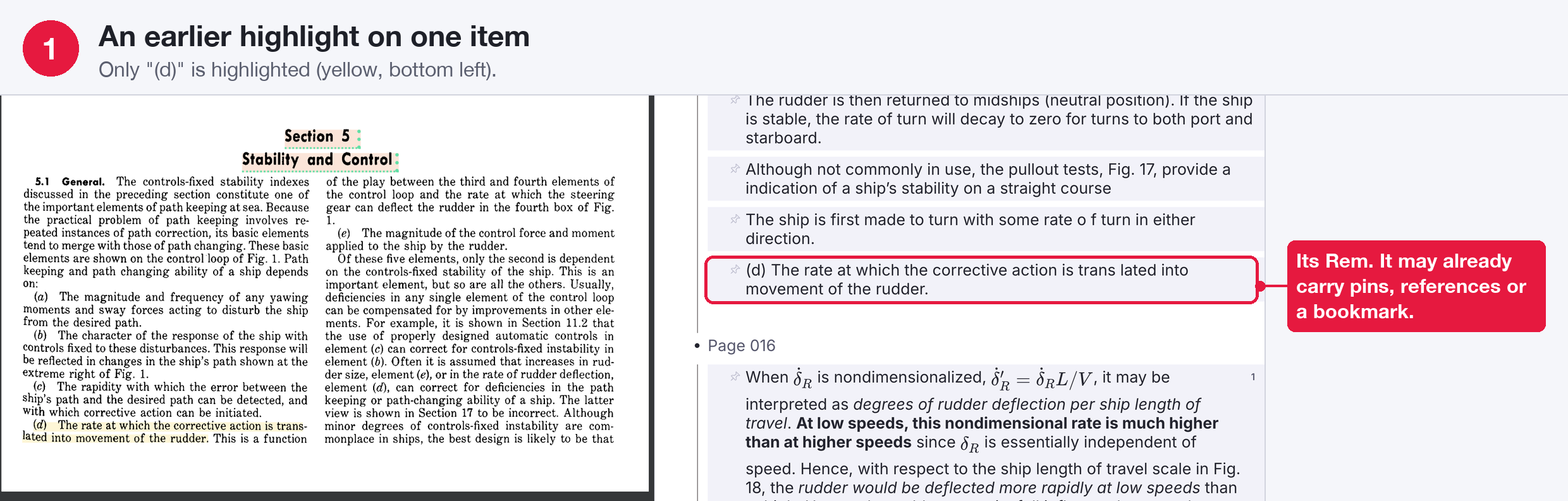
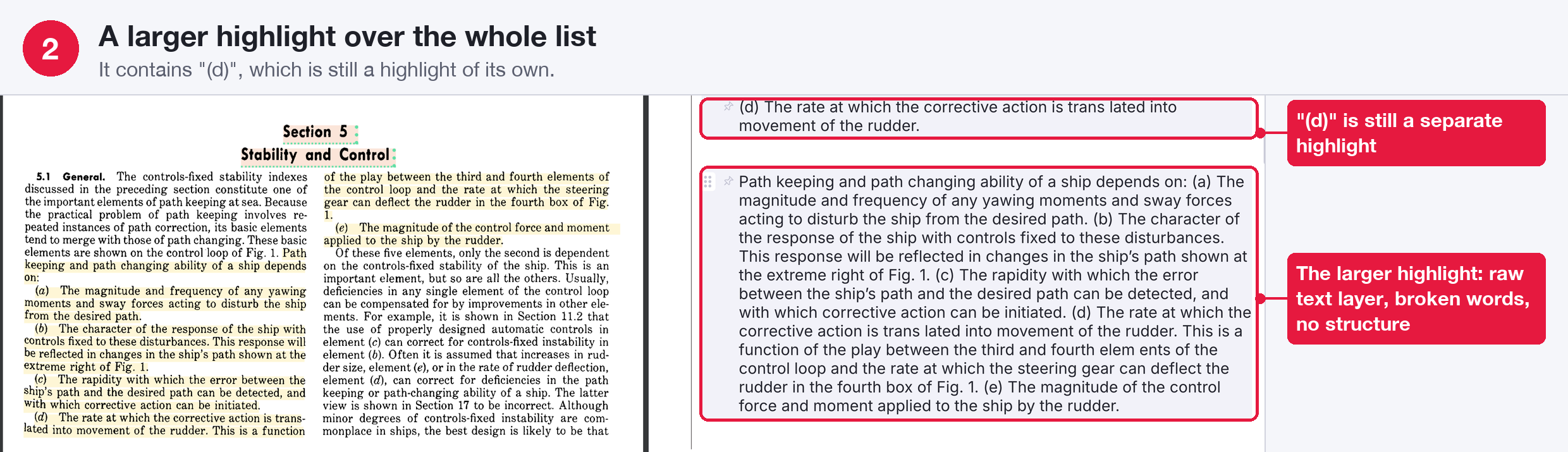
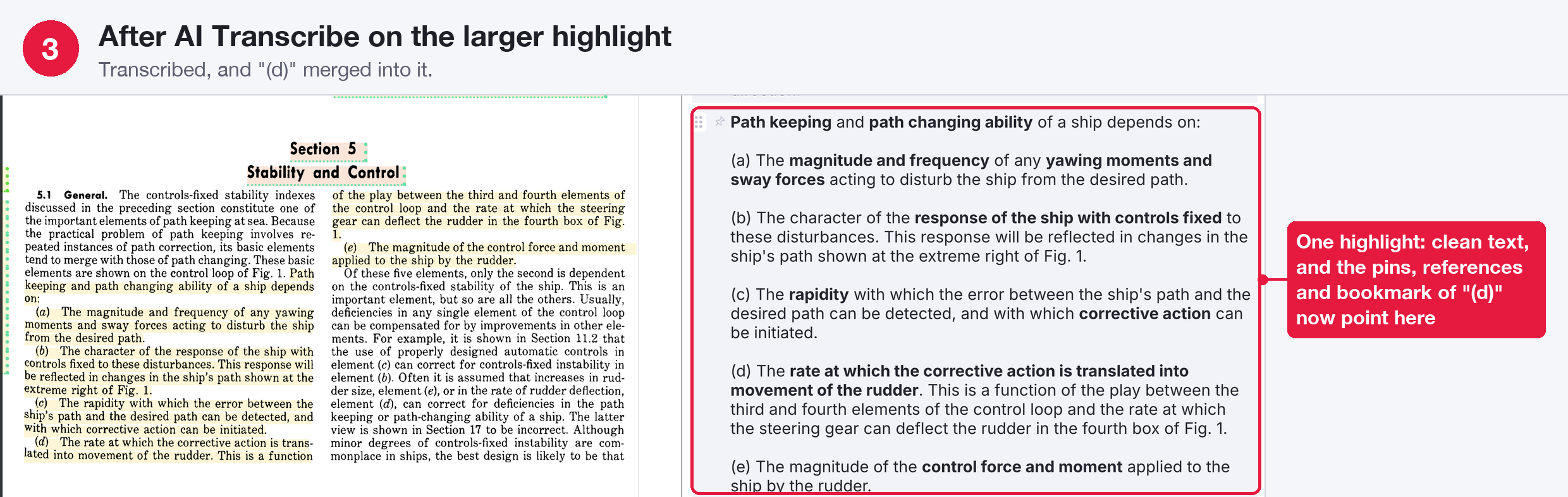
Everything that pointed at the smaller highlight moves to the larger one, in the same shape:
- References, pins and inline links keep their form (pin only, Show Content, Show Full Name, alias).
- Tags, sources, portals, children and flashcards (with their history) move over.
- A bookmark on the smaller highlight now points at the larger one.
The smaller highlight is then deleted. It counts as inside when at least 80% of it lies within the larger one. If both were Incremental Rems, the larger one keeps its own schedule and history.
Undoing a transcription
Run Restore PDF Highlight Text Before AI on the highlight's Rem to put back the text the transcription replaced. The previous text is kept on the device where you transcribed, and only the latest one: transcribing the same highlight twice keeps the text from before the second run. After a merge (area or smaller highlights), only the text comes back: merged highlights stay merged.
Customising the instructions
The instructions given to the AI live in ~/.incremental-remnote/ai-ocr/prompt.md. Edit them freely: they are read again for every highlight, so no restart is needed. Delete the file to get the defaults back.
The helper writes this file only when it is missing, so updating the helper does not change instructions you already have. To get a newer version's defaults, delete prompt.md and transcribe a highlight: the file is recreated.
Keep to the markup the plugin converts into rich text — anything else arrives as literal characters:
| Write | Becomes |
|---|---|
$x$ |
inline formula |
$$x$$ |
display formula (always use this for \tag) |
**text** |
bold (may contain a formula: **the angle $\theta$**) |
*text* |
italic (same) |
| line breaks | soft line breaks inside the same Rem |
Troubleshooting
| Message | What to do |
|---|---|
| AI helper is not running | Start the helper (Setup, step 4) and check http://127.0.0.1:3457/. |
| AI transcription failed: claude CLI not found | Install Claude Code. The helper looks for claude on your PATH and in ~/.local/bin, /opt/homebrew/bin and /usr/local/bin. |
| This highlight has no position data | It was made in the PDF Text Reader. Highlight the passage in the PDF view instead. |
| AI transcription failed: … (anything else) | Run claude in a terminal to confirm you are logged in, then look at the helper's records below. |
The helper keeps its records in ~/.incremental-remnote/ai-ocr/: requests.log (one line per highlight, with any error), helper.log (when started at login) and crops/ (the image sent for each highlight — useful when a transcription covers more or less than you highlighted).
Privacy: the image of the highlighted region and the highlight's text are sent to Anthropic through your Claude account, exactly as when you paste an image into a Claude conversation. Nothing else from your knowledge base is sent.