Cleaning Up
Commands that clear out Rems an import left behind, find flashcards that cannot be practised, and store the images and audio a Rem only links to.
Delete Empty Extra Card Detail Rems
Delete Empty Extra Card Detail Rems (quick: decd) finds Rems tagged Extra Card Detail that hold nothing at all, and deletes them once you have confirmed the count.
Why they exist
They come from Anki imports. Anki's Extra / Back Extra field is HTML, where a paragraph break is a structural element rather than a character. An importer that maps that field onto RemNote's Extra Card Detail powerup therefore creates a child Rem for every <br> and </p> — and the ones carrying no text arrive as Rems holding literally nothing.
In the outline they are easy to miss — a pair of blank bullets among the green ECD ones, betrayed only by the ✎ ✕ controls sitting on otherwise empty rows:
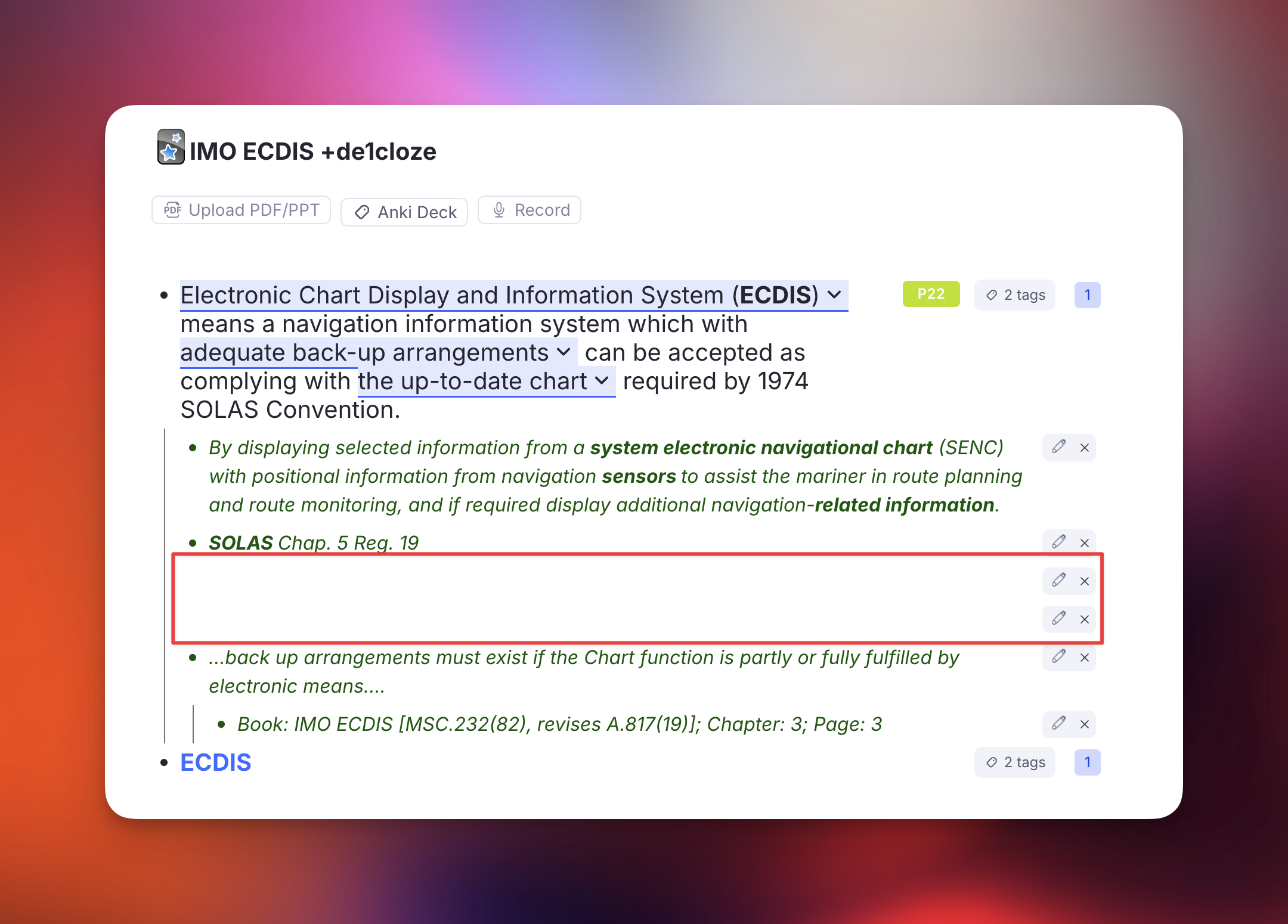
In the queue they are not missable, because every item shown has to be named and these have no name — so each one surfaces as Unnamed while you review.
Why the normal search cannot find them
RemNote's search indexes text, and these Rems have none. Neither Ctrl+F nor a query can isolate a Rem by its emptiness.
Asking the Extra Card Detail powerup for its members does not work either — RemNote does not expose membership for its built-in powerups, so that list comes back nearly empty on a knowledge base full of them. (The same limitation shows up elsewhere in this plugin, with PDF Highlights and uploaded files.)
So the command works by walking the scope and asking each Rem directly whether it carries the powerup. That sounds expensive and is not, because of the order it works in: whether a Rem is blank is readable without asking RemNote anything, so the blank test runs first and reduces a whole knowledge base to the few Rems worth a question.
How to use it
Run it from the omnibar. Two scopes, as with the image scan:
- This Rem and its descendants — the focused Rem, or the open document when the cursor is not in a Rem.
- The whole knowledge base — every Extra Card Detail Rem there is.
The scan writes nothing. It reports what it found and waits; nothing is deleted until you press the red button.
What counts as empty
The bar is set high on purpose, because this command deletes.
Blank text is not the same as empty
Some Rems hold no text at all and are still doing something — a portal is the clearest case: it has no text of its own because it is a window onto other Rems, and its contents are not its children either, so neither a text test nor a child test notices it. The signal is the Rem's type, which is why the checks below start there. This was found the hard way, by a scan that offered a portal as "safe to delete".
A Rem is only a candidate when every one of these holds:
- It is a plain Rem. Not a portal, not a table (nor a row or cell of one), and not a Concept, Descriptor, slot, powerup property or document. A typed Rem with no text is someone's unfinished structure, not import debris.
- It carries no other RemNote powerup. Every built-in powerup is asked about individually, because several of them — divider, embedded website, search portal, code block, uploaded file, table of contents — render real content while holding no text at all, and RemNote does not list built-in powerups among a Rem's tags.
- No text and no back text. Blank means blank after whitespace,
and zero-width characters are discounted — but an image, a Rem reference, LaTeX, audio, a drawing or an annotation counts as content even with no letters around it. Purely cosmetic formatting (bold, italic, highlight, colour) on nothing is still nothing; a cloze, a link or a comment is not, even when it renders as empty. - No children. Deleting a Rem takes its descendants with it, so a blank Rem with anything underneath it is never touched.
- It displays nothing. Asked directly whether it includes any Rem the way a portal does — a second guard behind the type check, since this is the mistake with the worst consequences.
- No tag or powerup other than Extra Card Detail. Anything else is a mark somebody put there deliberately.
- Nothing references it, it has no flashcards of its own, no source, and no alias.
Anything that fails a check is kept and counted, with the reason shown — so a run that deletes fewer Rems than you expected explains itself rather than leaving you guessing.
Confirming before the delete
The review screen gives you the numbers first:
- the funnel — how many Rems were walked, how many hold nothing, and how many of those carry Extra Card Detail — so a surprising result shows you which stage it narrowed at,
- how many are completely empty and safe to delete,
- how many were kept, broken down by reason,
- a sample of what will go, listed by the Rem each blank sits under — so you can recognise the documents involved before agreeing,
- a rough estimate of how long deleting will take.
Enter deliberately does not trigger the delete. It ran the scan on the previous screen, and carrying that reflex into an irreversible action is the mistake the two-stage flow exists to prevent — the red button has to be clicked.
If you need something back
A manifest is written before anything is deleted. Every candidate's id, and the id and text of the Rem it sits under, are saved to this device and offered as a JSON file download. If neither can be written, the run stops and deletes nothing — the same rule the card-priority migration follows.
That manifest is the recovery path worth relying on. The Rems themselves hold nothing, so what you would ever need back is the knowledge that one existed and where — which is exactly what it records. Every id is also written to the developer console before removal.
Whether RemNote's own trash retains plugin-deleted Rems is not something this page will promise; treat the manifest as the backup and, for a large run, take a knowledge-base export first.
How long it takes
The scan is quick, even across a whole knowledge base: reading every Rem takes seconds, the blank test costs nothing on top of that, and only the blank Rems pay for a question to RemNote. Deleting is the slow part, at roughly a tenth of a second per Rem, because RemNote applies deletions one at a time. The review screen estimates it before you commit; a few hundred Rems is under a minute, and several thousand is worth starting when you can leave the popup open.
Leave it running
The work lives inside the popup. Closing it mid-delete stops the run — Rems already deleted stay deleted, and running the command again clears the rest.
Card Enablement Audit
Audit Card Enablement (tagged / referencing / descendants) takes one anchor Rem, asks every Rem in its orbit whether it actually produces flashcards, and lets you switch the broken ones back on in bulk.
The problem it solves
A Rem can look exactly like a flashcard — a front, a back, a cloze — and generate nothing. There are several ways that happens, and RemNote shows none of them in the outline:
- the flashcard direction is set to
none, so neither the forward nor the backward card exists; - Enable Cards is off on the Rem itself;
- an ancestor carries Disable Descendant Cards;
- the Rem is a table or sits inside one — RemNote ships table rows with cards off;
- its clozes were switched off — one at a time in the queue, or all at once with RemNote's
/Disable All Cloze Cards.
The one that arrives in bulk is the first. An Anki import can land hundreds of Rems at enablePractice=true, practiceDirection=none — they read as perfectly ordinary flashcards and are simply never scheduled.
These Rems are invisible to every other tool
A Rem whose direction was set to none before any card was made owns no card records at all. It therefore produces no rows in the card table, which is what the Suppressed Cards breakdown is built from — so no amount of filtering there will ever show it. RemNote's own search cannot express the question either, because there is no text to match on.
This audit works the other way round: it starts from a set of Rems and asks each one what it generates. A Rem with no cards at all is a result, not an absence.
Choosing what to audit
The anchor is the focused Rem (or the document you ran the command from). Four checkboxes decide the population, and they combine freely:
- Tagged with it — every instance of the anchor used as a tag.
- Referencing it — every Rem whose text links to the anchor.
- Its descendants — the anchor itself and everything underneath it.
- Expand each match — add every match's own subtree.
That last one is usually what reaches an imported deck: the tag or the reference sits on the container, while the Rems that own the cards are its children.
Reading the results
Each Rem gets one verdict, shown as a coloured chip you can click to filter the list. The panel opens showing the two that are worth hunting.
| Verdict | Meaning | Fixable here |
|---|---|---|
dir=none |
Has card material, practice is on, no direction enabled | ✅ |
practice off |
Enable Cards is off on the Rem | ✅ |
table |
The Rem is a table or sits in one | ✅ |
ancestor off |
An ancestor carries Disable Descendant Cards | ❌ — untag the ancestor |
paused deck |
Inside a paused deck | ❌ — unpause the deck |
clozes off |
Every cloze on the Rem is switched off, so it produces nothing | ❌ — see below |
some clozes off |
Still producing cards, but some of its clozes are switched off | ❌ — see below |
not surfaced |
Nothing surfaces and no Rem-level flag explains it | ❌ — the markup is probably gone |
no material |
No back side, no clozes, no card records | ❌ — not a flashcard |
OK |
Producing cards | — |
Every row shows both the cards currently surfaced and the card records that exist, as surfaced/records. Those two numbers are what separate a Rem whose cards were switched off from one that never had any — rem.getCards() alone cannot tell them apart.
The verdicts are ordered by what a fix would actually accomplish, so a Rem under a disabling ancestor is reported as ancestor off rather than dir=none: setting a direction there writes the flag and still produces nothing.
Switched-off clozes can only be undone inside RemNote
RemNote keeps a Rem's disabled clozes in a list on the Rem itself, and it exposes that list to no plugin — it cannot be read or written from here. The audit works it out indirectly, from the card records that exist but never surface, and reports it as clozes off / some clozes off with a count in the surfaced/records column (0/1 · 1c (1 off)).
Switching cards ON will not bring them back. That writes the Enable Cards flag and leaves the cloze list untouched, so the Rem still produces nothing — and RemNote's own /Enable Cards command behaves exactly the same way. This catches people out, which is why the panel says so on screen rather than offering a button.
Click the row to open the Rem, then run RemNote's /Enable All Cloze Cards there — or click a greyed-out cloze and choose Enable this card for just one.
A Rem is only given one of these verdicts once everything else has been ruled out. A disabling ancestor or a paused deck hides every card on a Rem, which would make each of its clozes look individually switched off; those Rems are reported by their real cause instead.
Fixing them
Tick the rows you want — the panel pre-selects exactly the fixable ones in the default filter — pick an action, and apply.
- Set flashcard direction →
forward(the default),both,backwardornone. - Switch cards ON / Switch cards OFF.
↑/↓ move, Space selects, A selects everything shown, Enter applies, Esc closes.
Enabling cards creates cards
A Rem at direction=none that never had a card gets a brand-new one, with no repetition history and a due date of now. Fixing three hundred imported rows drops three hundred new cards straight into your queue.
The card priority field beside the action exists for this: tick it and every Rem the run enables also gets that priority, so the new cards enter the queue where you chose instead of wherever they would have inherited from. See Priorities for Flashcards.
After the run the panel reports how many cards actually appeared — read back from the Rems, not predicted, since whether a direction change revives an old card record or mints a new one is RemNote's decision.
Undoing
The current state of every Rem — its Enable Cards flag and its direction — is captured before the first write, offered as a JSON download, and restorable with Undo last apply in the panel. (Those two flags are the only things the panel ever writes, so they are the only things there is anything to undo.)
Try a handful first
Select five rows and apply. The report tells you exactly how many cards that produced, which is the honest way to find out what a run over the whole deck will do to your queue before you commit to it.
Store Linked Images & Audio in RemNote
Store linked images & audio in RemNote (quick: slm) takes the images and audio a Rem only links to, fetches them, and stores them in RemNote the way an uploaded file is stored — so the Rem stops depending on somebody else's server.
Linked or stored: the difference you cannot see
An image and an audio player look the same in the editor whichever way they were added. What RemNote saved is not the same:
| Added through | What RemNote saves | If the outside server drops the file |
|---|---|---|
| Upload, Record, paste, drag and drop | its own copy of the file | nothing happens |
| Embed Link, Audio Search, an image picked from Wikimedia | only the web address | the image or player is dead |
A linked file is fetched from the outside server every time the Rem is shown. That is fine until a dictionary reorganises its audio folder or a site takes an image down — and it never plays offline. A stored file is kept with your knowledge base and syncs with it.
RemNote does sometimes copy a linked image by itself, but not dependably — a knowledge base can hold hundreds of images that are still bare links — and it never copies linked audio. Pronunciation audio embedded from a dictionary site is the typical case: every one of those players is a link.
Spotting linked audio
Turn on Mark Audio That Is Only Linked (Settings → Editor Indicators) and every audio player whose file is still on an outside server gets a dashed orange outline and a 🔗 at its right end. A player whose file RemNote stores looks as it always did.
Run the command on the Rem and the outline goes, which is also the quickest check that it worked. The marker is drawn in the editor only, not in the queue, and covers audio only: a linked image is not marked.
How to use it
Put the cursor in a Rem, or select several, and run the command from the omnibar. Both the front and the back of each Rem are handled.
- Store linked images & audio in RemNote (
slm) — the focused Rem, or the selected Rems. - Store linked images & audio in RemNote (with descendants) — the same Rems and their whole subtree. Point it at a document, or at a folder of vocabulary, to store everything in it.
It takes a couple of seconds per file. Nothing shows while it works; the result arrives at the end.
What it changes, and what it leaves alone
The Rem is edited in place. Only the address inside the image or the audio player is replaced; the text, the size of the image and everything else stay as they were. It is the same Rem, so its flashcards and their history are untouched.
Left alone:
- files RemNote already stores — which makes the command safe to re-run;
- video embeds such as YouTube, which are pages rather than files;
- anything it could not fetch, which simply stays linked.
Reading the result
When everything was stored, a single toast says how many files were stored and how many Rems were updated — or that there was nothing linked to begin with.
When some files could not be fetched, a dialog lists their addresses instead. The rest were still stored.
Every file is also logged to the console under [localize-media], old address and new, for when you want to see exactly what a large run did.
Desktop app or browser
Use the desktop app for this. It may fetch a file from any server.
In the browser, a file is only reachable when its server allows other sites to request it. Wikimedia does; most dictionary sites do not, so their audio fails there.
Audio leaves one empty Rem behind
Storing audio goes through a throwaway Rem, which the command deletes again. RemNote creates one more empty Rem alongside it that the plugin has no way to reach, so each run leaves one empty top-level Rem (one per 20 audio files on a large run). It is harmless and can be deleted. Images normally leave nothing behind.
Cycle Image Size
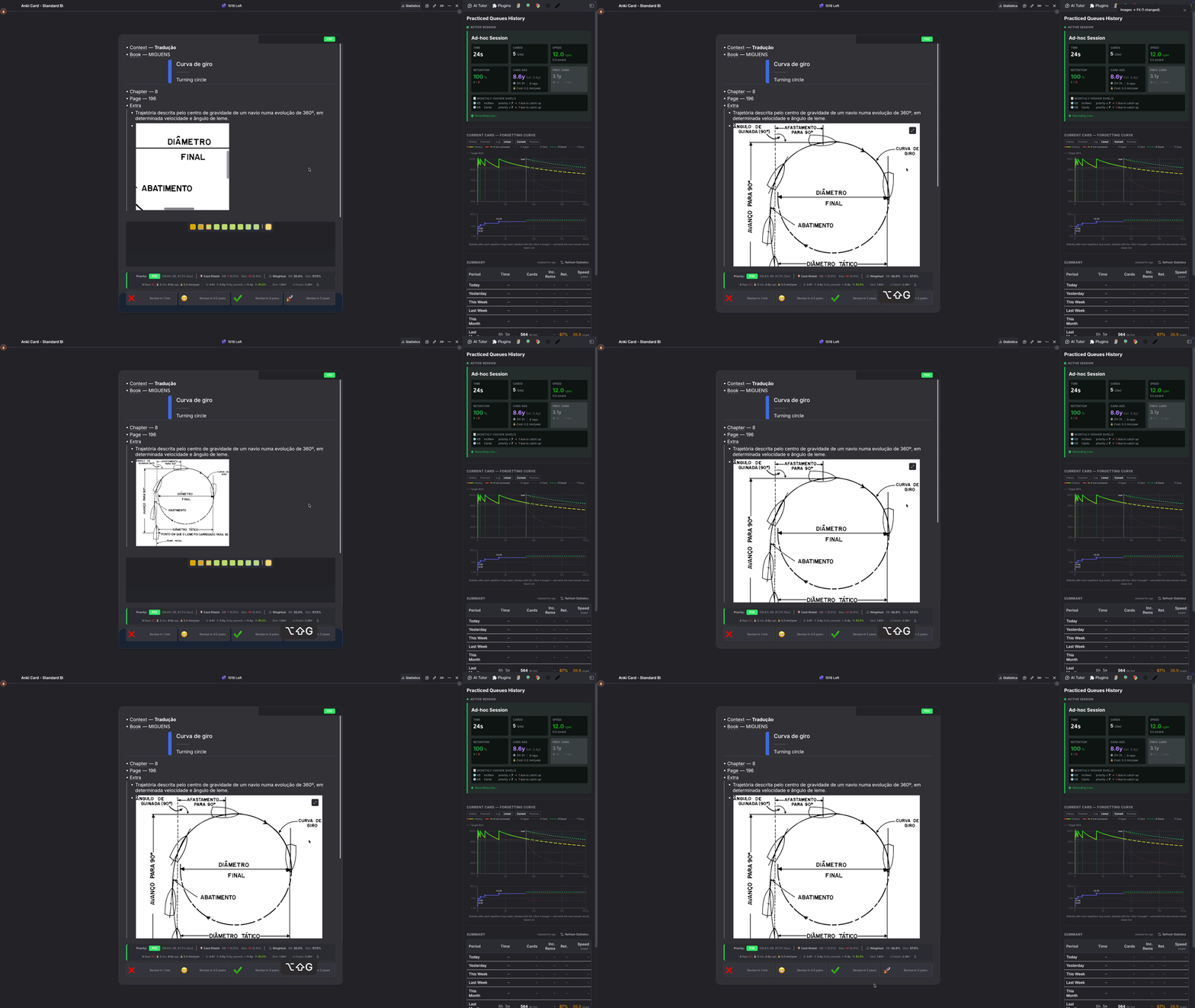
Cycle Image Size (Opt+Shift+G / Alt+Shift+G, quick: cis) gives a size to the images that never got one in RemNote — typically the images of imported cards — so they stop showing up cropped in the flashcard queue. Press it again to move to the next size.
The problem it solves
In the queue, RemNote draws an image inside a small zoomable frame. An image you have resized in RemNote fills that frame correctly. An image that still carries the size it was imported with — an Anki import, for instance — can come out zoomed in and cut off, with scrollbars around it, until you resize it by hand. The same image looks fine in the editor.
This command does that resizing for you, on every such image of a card at once.
How to use it
In the queue, press the shortcut on the card that shows a cropped image: the image redraws straight away. If you have a Rem selected in the previewer (P), the command acts on that Rem instead of the card.
In the editor, put the cursor in a Rem, or select several, and press the shortcut.
Either way it covers the Rem and three levels below it — children, grandchildren and great-grandchildren — front and back.
The four sizes
Each press moves all the images it found one step along:
| Step | Result |
|---|---|
| Fit | The image at its real size, never wider than the card. The same as dragging its edge. |
| Large | Full width — RemNote's own Large Image. |
| Medium | Half width — RemNote's own Medium Image. |
| Original | Back to how the image was before the first press. |
After Original the next press starts again at Fit. A message names the step and says how many images changed.
Which images it changes
Only images nobody has sized in RemNote: those with no stored size at all, and those whose stored size is still the file's own pixel size.
Left alone:
- images you have resized, by dragging or through the image menu;
- Image Occlusion images, drawings and cropped images — their boxes are placed relative to the image's size;
- the image of a PDF or web highlight;
- an image whose file cannot be loaded to measure it.
The message tells you how many images were skipped, and why.
Good to know
- The cycle is remembered until you restart RemNote. After that, the images you sized with this command count as sized, and the command leaves them alone — use RemNote's image menu to change them.
- The Rem is edited in place and only the image's size changes, so its flashcards and their history are untouched.