Repetition History & Statistics
The plugin offers two powerful views to analyze your learning progress: the Single History View for individual items and the Aggregated History View for entire folders and knowledge trees.
1. Single History View
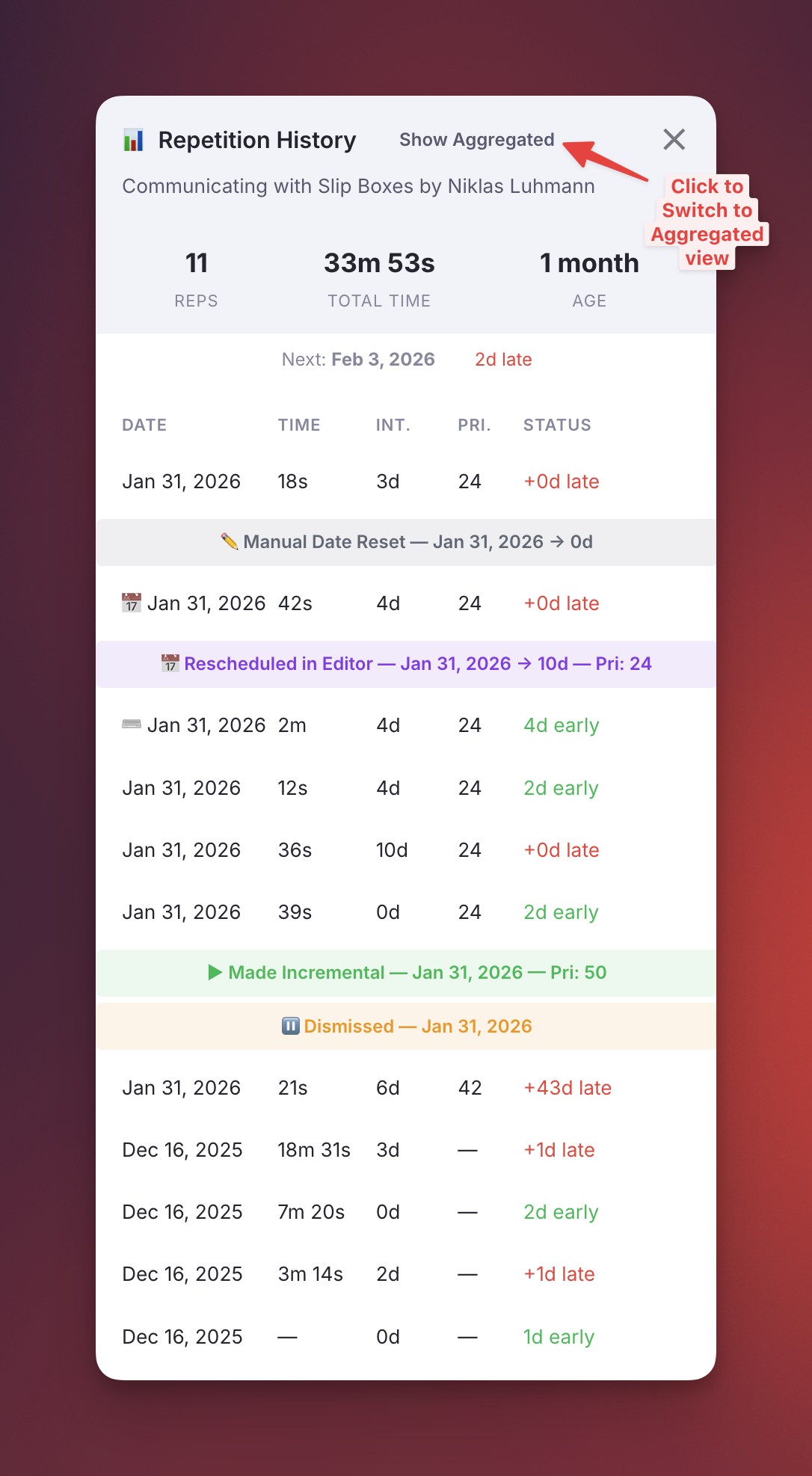
Gives you detailed insights into your review history for any specific Incremental Rem.
What it shows:
- Stats Row: Total reps, total time spent, age since first review
- Next Review: Scheduled date with days late/early indicator
- History Table: Date, time spent, interval, priority, and status for each repetition
2. Aggregated History View
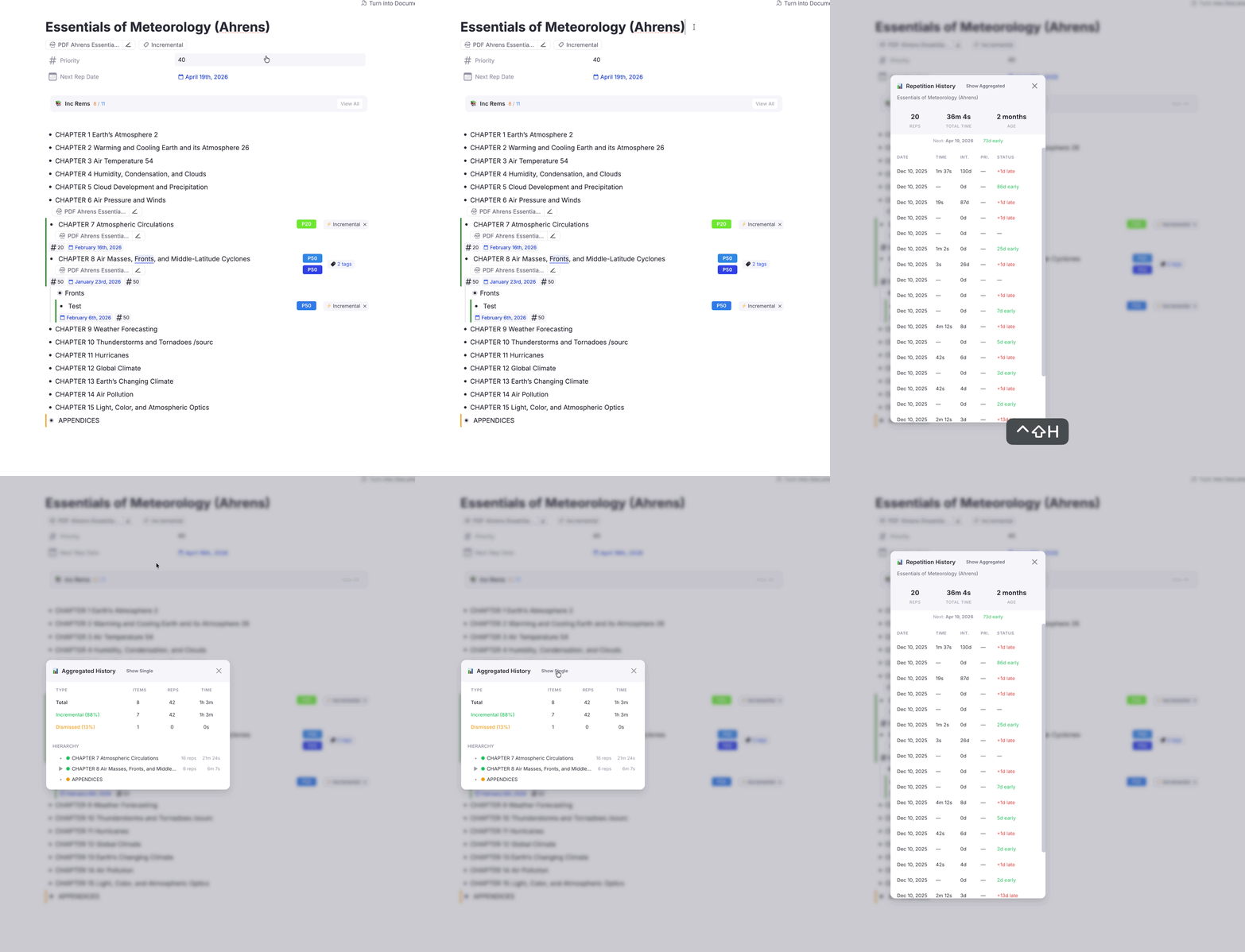
Gives you a high-level overview of progress stats for a Rem and all its descendants. Perfect for checking your progress on a specific book, course, or topic.
What it shows:
- Tree-View Hierarchy: Displays a hierarchical tree of your Incremental Rems, sorted exactly as they appear in your document.
- Aggregated Metrics: Shows total repetitions, time spent, and item counts for the current selection plus all its descendants.
How to Access (Smart Routing)
There is a single unified command: Open IncRem Repetition History.
- Keyboard Shortcut:
Ctrl+Shift+H(works in both Queue and Editor, on Incremental Rems and on ordinary flashcards — see how it routes) - In the Queue: Click the 📊 icon in the Answer Buttons info bar
Smart Behavior:
- If you select an Incremental Rem (or one with history), it opens the Single History View.
- If you select a Folder (that has Incremental descendants), it automatically opens the Aggregated History View.
Switching Views
You can easily toggle between views using the button in the window header:
- Click "Show Aggregated" from the Single View to see the tree stats.
- Click "Show Single" from the Aggregated View to focus on the specific item.
Event Markers
The history includes special event markers:
| Marker | Meaning |
|---|---|
| ▶ Made Incremental | When the Rem was first made (or re-made) incremental — shows the priority and the interval it started with |
| ⏸ Dismissed | When the Rem was dismissed via the Dismiss button |
| 🎚 Priority change | The priority changed on its own — no review, no reschedule. Shows the move (60 → 45) and which gesture made it |
| 🔀 Transferred from … | The history above this line was studied on another Rem and moved here by Transfer to Parent |
When you set a priority right after creating the Rem — Alt+Shift+X, the PDF highlight toolbar's Create IncRem, or Toggle Incremental — the priority and interval you choose are written into this marker rather than added beside it, so one action leaves one entry. Rescheduling later (Alt+P, Ctrl+J) is still recorded as its own event.
A 🎚 Priority change marker is filed only when nothing else records the new priority. Reschedules and reviews already carry the priority they set, so they produce no separate marker; and successive changes from the same gesture within a minute collapse into one, so holding Ctrl+Opt+↓ to walk a priority down leaves a single entry showing where it landed. Priority changes count for neither your statistics nor the scheduler.
A 🔀 Transferred marker records a change of owner, not a study event: everything above it in the log happened on the Rem it names, before the transfer moved it here. Like ▶ Made Incremental it counts for neither your statistics nor the scheduler — and deliberately does not reset the scheduler's repetition count, which is what preserves the interval progression the transfer exists to keep.
These markers help you understand your learning timeline and distinguish between different review sessions. Each banner shows the date and the time of day (Aug 13, 2026 · 09:44) it was recorded — the same wall-clock detail the repetition rows carry — so a day holding several lifecycle events (made incremental → dismissed → made incremental again) still reads in order.